
How to Reduce Data Usage Windows 10 and 11
Reduce Data Usage Windows; How to Stop Background Internet Drain on Windows 10/11
Introduction
Many users don’t realize how much internet their computer consumes daily. In fact, even when you are not browsing, Windows continues downloading updates, syncing apps, and refreshing services. Therefore, if you want to reduce data usage Windows, you must control background activity rather than just limiting your browsing.
This guide explains why Windows consumes so much internet and shows step-by-step fixes that actually reduce bandwidth usage without breaking your system.
H2: reduce data usage windows; Why Windows Uses Too Much Internet
Before fixing the issue, it helps to understand the causes. Otherwise, you may disable the wrong features and still lose data.
H3: reduce data usage windows updates downloading automatically
Windows automatically downloads updates in the background. Consequently, your hotspot bundle disappears even when the laptop is idle.
External reference:
support.microsoft.com

H3: cloud sync and OneDrive activity
Additionally, OneDrive constantly uploads and downloads files. Even small document edits trigger syncing. As a result, data drains silently.

H3: apps refreshing in background
Furthermore, apps like browsers, Microsoft Store, and widgets refresh content. Therefore, Windows behaves like a smartphone always online.

H3: delivery optimization sharing updates
Windows may upload updates to other PCs on the internet. In other words, your laptop becomes a mini server using your data.
Reference: Microsoft Windows:
H2: reduce data usage windows using metered connection
The fastest fix is enabling metered connection. This tells Windows your internet is limited.
Steps
- Open Settings
- Network & Internet
- Wi-Fi or Ethernet
- Click your network
- Turn ON Metered Connection
Afterwards, Windows stops automatic downloads and reduces background activity.

H3: reduce data usage windows update limits
Additionally, set download limits:
Settings → Windows Update → Advanced → Delivery Optimization → Advanced options
Then choose percentage limits for download and upload.
H2: reduce data usage windows by disabling background apps
Even after metered connection, apps still request internet. Therefore, disable them manually.
Steps
Settings → Privacy → Background Apps
Turn off apps you rarely use.

H3: browsers and startup apps
Browsers preload pages and extensions. Consequently, data usage increases even without browsing.
Fix:
Task Manager → Startup → Disable unnecessary programs
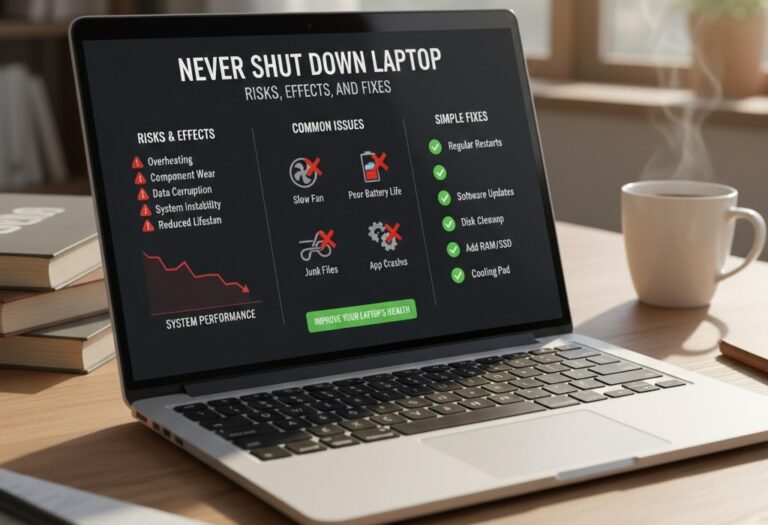
For never shut down laptop tips follow the link never shut down laptop:
H2: Reduce Data Usage Windows; Stop Automatic Updates Temporarily
One of the biggest hidden culprits of high internet consumption on Windows 10 and Windows 11 is automatic updates. Windows regularly downloads security patches, feature updates, and driver improvements in the background. While keeping your system updated is essential for security, these automatic downloads can quickly consume limited data especially if you are on a mobile hotspot or capped internet plan.
It’s important to note that you should not permanently disable updates, because this can leave your PC vulnerable to security threats and software issues. However, pausing updates temporarily is a smart, practical way to save data when you need it most, without compromising long-term system safety.
How to Pause Windows Updates
- Open Settings → Go to Windows Update
- Click Pause updates for 7 days (or select a longer duration in advanced options)
- Continue using your internet normally during this pause
- Once you return to a stable Wi-Fi or unlimited connection, resume updates to stay secure and current
By pausing updates temporarily, you prevent large downloads from eating into your data allowance while still allowing your system to get critical patches later.
Why This Helps
- Stops sudden data drain during hotspot use
- Allows more control over when Windows downloads updates
- Ensures essential security patches are not missed, only delayed until convenient
- Works together with metered connections and background app control for maximum data efficiency

By combining this step with disabling unnecessary background apps, controlling cloud syncing, and using metered connections, you can significantly reduce data usage on Windows without breaking your system or sacrificing performance.
H2: Reduce Data Usage Windows; Control Cloud Syncing
Cloud syncing is one of the biggest hidden sources of data consumption on Windows 10 and Windows 11. Services like OneDrive, Google Drive, or Dropbox constantly upload and download files in the background, even when you are not actively using them. Consequently, your internet bundle can shrink quickly without you noticing. Therefore, controlling cloud syncing is a crucial step if you want to reduce data usage Windows effectively.
OneDrive
OneDrive, the default cloud service on Windows, automatically syncs documents, photos, and settings across devices. While convenient, this feature continuously consumes bandwidth. To prevent unnecessary usage, you can pause syncing during critical times or when on a limited data connection.
Steps:
- Right-click the OneDrive icon in the system tray
- Select Settings → Go to the Account tab
- Click Pause syncing and choose a duration (2 hours, 8 hours, or 24 hours)
Pausing OneDrive ensures that files only update when necessary, saving significant amounts of data.
Web Browsers
Modern browsers like Chrome and Microsoft Edge also sync bookmarks, passwords, history, and extensions. While useful, automatic sync can use unexpected amounts of internet in the background, especially if multiple devices are linked.
Steps to reduce usage:
- Open browser settings → Accounts → Turn off auto-sync
- Disable unnecessary extension updates or preloading features
By controlling browser syncing, your data is consumed only when you manually choose to update or access synced content.
Benefits
Once cloud syncing is properly controlled:
- Your system no longer uses internet continuously for background file transfers
- You gain more control over when updates and uploads happen
- Metered connections or limited hotspots last longer without unexpected data loss

By combining cloud sync control with metered connections and background app management, you can dramatically reduce Windows’ overall data consumption while still keeping essential files up-to-date when necessary.
H2: Reduce Data Usage Windows Advanced Tricks
Even after applying the basic settings, Windows can still quietly consume internet in the background. Therefore, these advanced tweaks help you squeeze out every extra megabyte and keep your connection predictable, especially if you rely on limited mobile or capped home data.
Disable Live Tiles & Widgets
Live tiles and widgets constantly refresh to pull news, weather, stock updates, and suggestions from the internet. As a result, your PC keeps downloading small packets of data throughout the day even when you are not actively using them.
So, removing them stops those silent background requests.
How to do it:
- Right-click the Start menu tiles → Unpin from Start
- Open Widgets panel → Turn off unnecessary feeds
- Disable news and interests from taskbar settings
Afterward, Windows will no longer repeatedly check servers for updates you rarely read, which saves data continuously.
Turn Off Peer-to-Peer Updates (Delivery Optimization)
By default, Windows shares updates with other PCs on the internet. In other words, your computer becomes a mini update server for strangers online. Consequently, this can drain large amounts of bandwidth without you noticing.
Steps:
- Settings → Windows Update
- Advanced options → Delivery Optimization
- Toggle Allow downloads from other PCs → Off
Once disabled, your PC will only download updates directly from Microsoft instead of uploading them to others.
Use Browser Data Saver Mode
Web browsers are one of the biggest data consumers because images, ads, trackers, and autoplay videos load automatically. However, modern browsers provide efficiency features that compress pages and block heavy background elements.
You should enable:
- Chrome: Lite/Reduced data usage (or turn on memory & energy saver)
- Microsoft Edge: Efficiency mode + Sleeping tabs
As a result, pages load faster, videos buffer less, and overall browsing uses noticeably less data — especially on slow or metered connections.
Use Offline Apps Whenever Possible
Many apps don’t actually need constant internet access. Instead, they only require occasional syncing. Therefore, switching to offline usage dramatically cuts consumption.
Good examples:
- Offline maps for navigation
- Downloaded Spotify or YouTube content
- Offline Microsoft Office documents
- Email sync set to manual instead of real-time
After you enable offline modes, Windows stops repeatedly checking servers every few minutes. Consequently, your monthly data usage drops significantly without affecting productivity.
By combining these advanced tricks with earlier settings, your computer stops wasting bandwidth in the background and starts using internet only when you truly need it.
H2: Reduce Data Usage Windows Advanced Tricks
Even after applying the basic settings, Windows can still quietly consume internet in the background. Therefore, these advanced tweaks help you squeeze out every extra megabyte and keep your connection predictable, especially if you rely on limited mobile or capped home data.
Disable Live Tiles & Widgets
Live tiles and widgets constantly refresh to pull news, weather, stock updates, and suggestions from the internet. As a result, your PC keeps downloading small packets of data throughout the day even when you are not actively using them.
So, removing them stops those silent background requests.
How to do it:
- Right-click the Start menu tiles → Unpin from Start
- Open Widgets panel → Turn off unnecessary feeds
- Disable news and interests from taskbar settings
Afterward, Windows will no longer repeatedly check servers for updates you rarely read, which saves data continuously.
Turn Off Peer-to-Peer Updates (Delivery Optimization)
By default, Windows shares updates with other PCs on the internet. In other words, your computer becomes a mini update server for strangers online. Consequently, this can drain large amounts of bandwidth without you noticing.
Steps:
- Settings → Windows Update
- Advanced options → Delivery Optimization
- Toggle Allow downloads from other PCs → Off
Once disabled, your PC will only download updates directly from Microsoft instead of uploading them to others.
Use Browser Data Saver Mode
Web browsers are one of the biggest data consumers because images, ads, trackers, and autoplay videos load automatically. However, modern browsers provide efficiency features that compress pages and block heavy background elements.
You should enable:
- Chrome: Lite/Reduced data usage (or turn on memory & energy saver)
- Microsoft Edge: Efficiency mode + Sleeping tabs
As a result, pages load faster, videos buffer less, and overall browsing uses noticeably less data — especially on slow or metered connections.
Use Offline Apps Whenever Possible
Many apps don’t actually need constant internet access. Instead, they only require occasional syncing. Therefore, switching to offline usage dramatically cuts consumption.
Good examples:
- Offline maps for navigation
- Downloaded Spotify or YouTube content
- Offline Microsoft Office documents
- Email sync set to manual instead of real-time
After you enable offline modes, Windows stops repeatedly checking servers every few minutes. Consequently, your monthly data usage drops significantly without affecting productivity.
By combining these advanced tricks with earlier settings, your computer stops wasting bandwidth in the background and starts using internet only when you truly need it.
Practical Checklist
Do these first:
- Enable metered connection
- Pause updates
- Disable background apps
- Stop cloud sync
- Limit delivery optimization
You will immediately notice lower data usage.
FAQs
Does metered connection stop all updates?
No. Security updates may still download, but large updates pause.
Why does Windows use data overnight?
Maintenance tasks, updates, and syncing run when idle.
Can antivirus consume data?
Yes, especially during definition updates.
Is it safe to disable delivery optimization?
Yes, it only affects update sharing.
Further Thoughts
If you regularly use mobile hotspot, learning to reduce data usage Windows is essential rather than optional. Otherwise, background services will consume your bundle before you even open a browser.
Fortunately, Windows provides built-in controls metered connection, background app limits, update pause, and sync control. When combined, these dramatically reduce consumption while keeping the system secure.
Therefore, instead of disabling internet features entirely, configure them intelligently. Your laptop stays functional, and your data lasts significantly longer.
Conclusion
Reducing data usage on Windows 10 and Windows 11 doesn’t require complicated tools or technical skills just a few smart adjustments. By enabling metered connections, limiting background apps, pausing automatic updates, and controlling cloud sync, you take back control of how your internet is consumed. As a result, your data lasts longer, your browsing becomes more predictable, and unexpected bundles running out become a thing of the past.
More importantly, these settings do not harm your computer’s performance; instead, they help it focus on what you actually use. Therefore, you save both bandwidth and system resources at the same time. Once you apply these steps, maintaining low data consumption becomes effortless because Windows will automatically respect the limits you’ve set.
In short, a well-configured PC is not only faster but also smarter with internet usage. So after making these changes, you can comfortably work, stream, or study online without constantly worrying about your data disappearing in the background.