
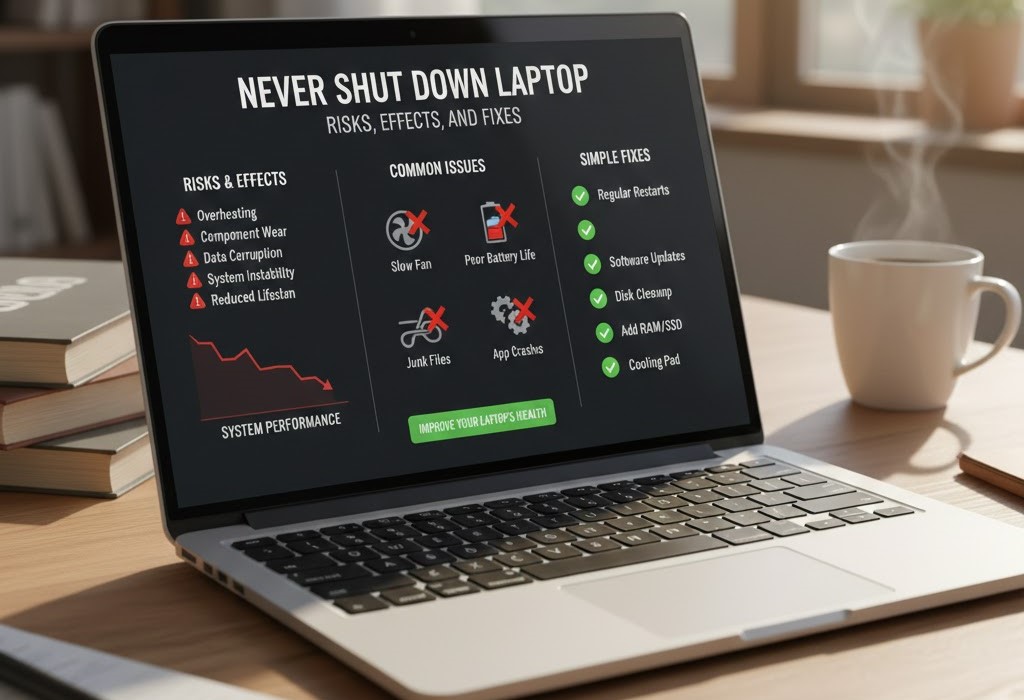
Never Shut Down Laptop; Risks, Effects, and Fixes
Never Shut Down Laptop; What Really Happens and How to Prevent Damage
Introduction
Many users wonder what happens if they never shut down laptop. Some think modern devices can run 24/7 without issues, while others notice slowing performance, glitches, or overheating over time. In reality, leaving a laptop on continuously affects both software and hardware. Therefore, understanding the risks, benefits of occasional shutdowns, and simple maintenance steps is essential.
This guide explains the consequences of never shutting down your device, explains why it slows down, and shares proven fixes to maintain smooth performance and extend your laptop’s lifespan.
H2: never shut down laptop; Common Problems and Risks
Leaving your laptop running non-stop can cause several issues. Although modern operating systems like Windows 11, macOS, and Linux manage resources better than older systems, continuous operation still strains the machine.
H3: never shut down laptop performance slowdown
First, applications running in the background gradually consume memory and CPU cycles. For instance, web browsers, cloud sync software, and communication apps continuously use RAM. Consequently, your laptop may feel slower over time, even with sufficient memory.
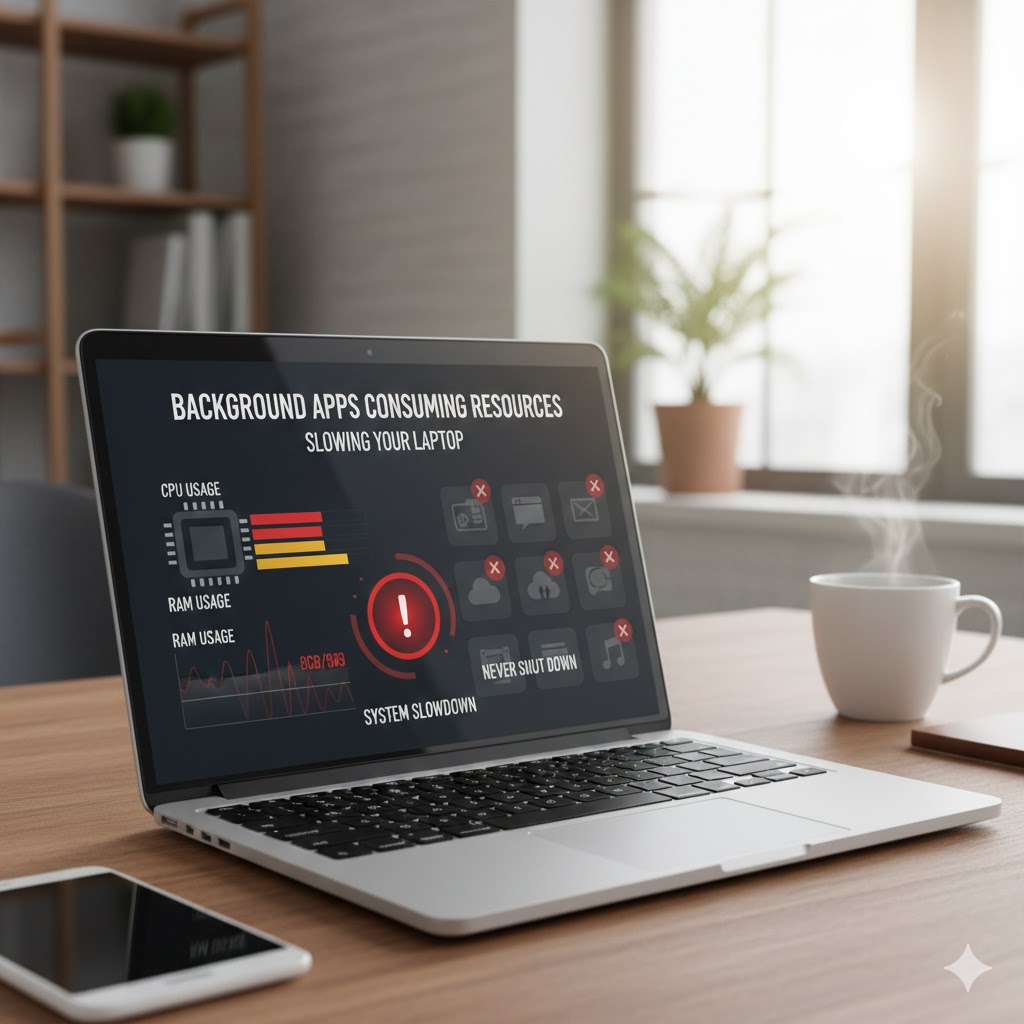
How to improve PC performance.
H3: memory leaks and system instability
Second, memory leaks occur when software fails to release RAM after usage. Over hours or days, memory fills, causing freezing, slow app launches, and crashes. Similarly, long-running applications like Photoshop, Chrome, or virtual machines exacerbate this problem.
Tips for slow laptop with 8GB RAM:
H3: overheating and hardware wear
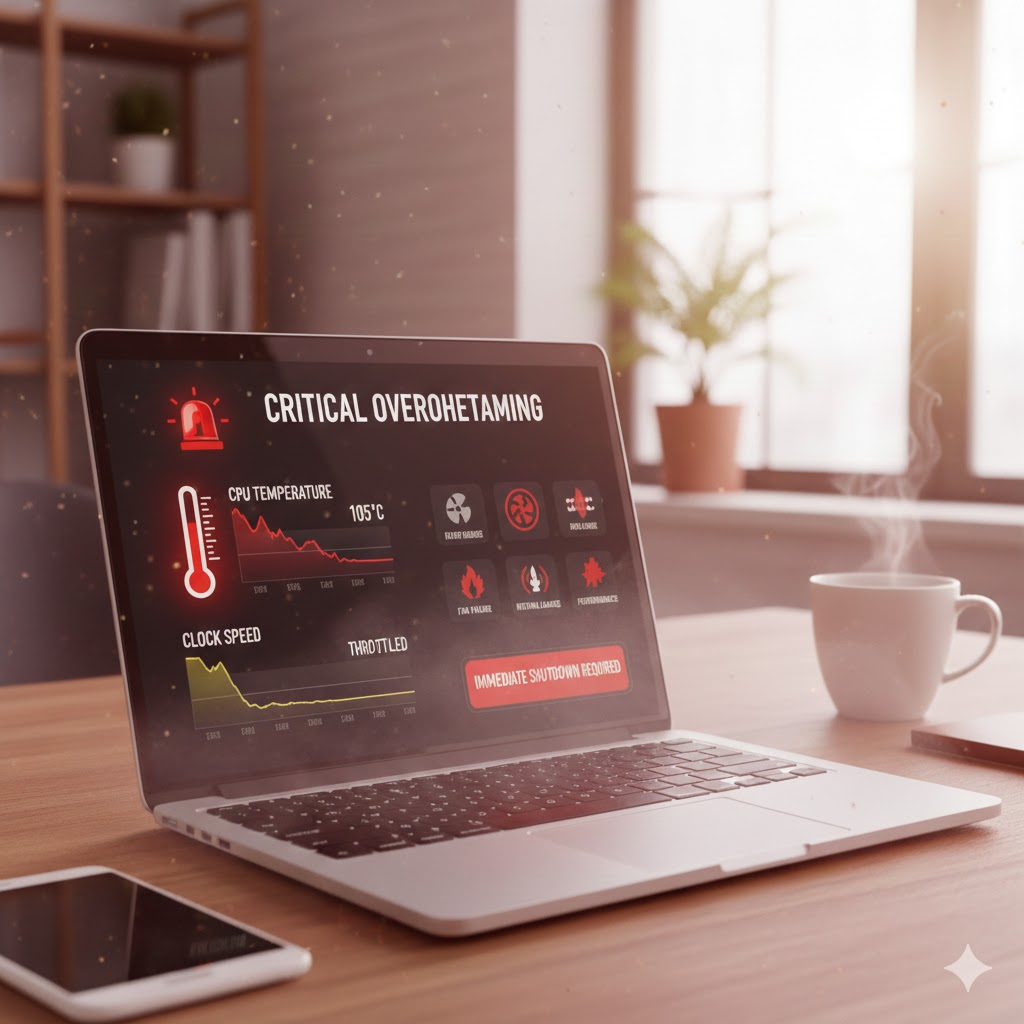
Furthermore, continuous operation raises internal temperatures. Laptops have small fans that run constantly, increasing wear over time. Additionally, thermal throttling automatically reduces CPU performance to prevent damage. As a result, you may experience lag, stuttering, or unexpected shutdowns.
H3: software updates delay
Also, not shutting down delays critical updates. Many Windows or macOS updates require a restart to complete installation. Consequently, your system becomes vulnerable to security risks, bugs, and software incompatibility.
reference: Microsoft Windows Update Guide
H2: Benefits of occasional shutdowns
Although sleep and hibernate modes save power, regular shutdowns offer specific advantages:
- Clear RAM and temporary files – smoother performance
- Complete software updates – enhanced security
- Reduce thermal stress -longer hardware life
- Restart services – resolves minor glitches
H3: never shut down laptop vs sleep mode
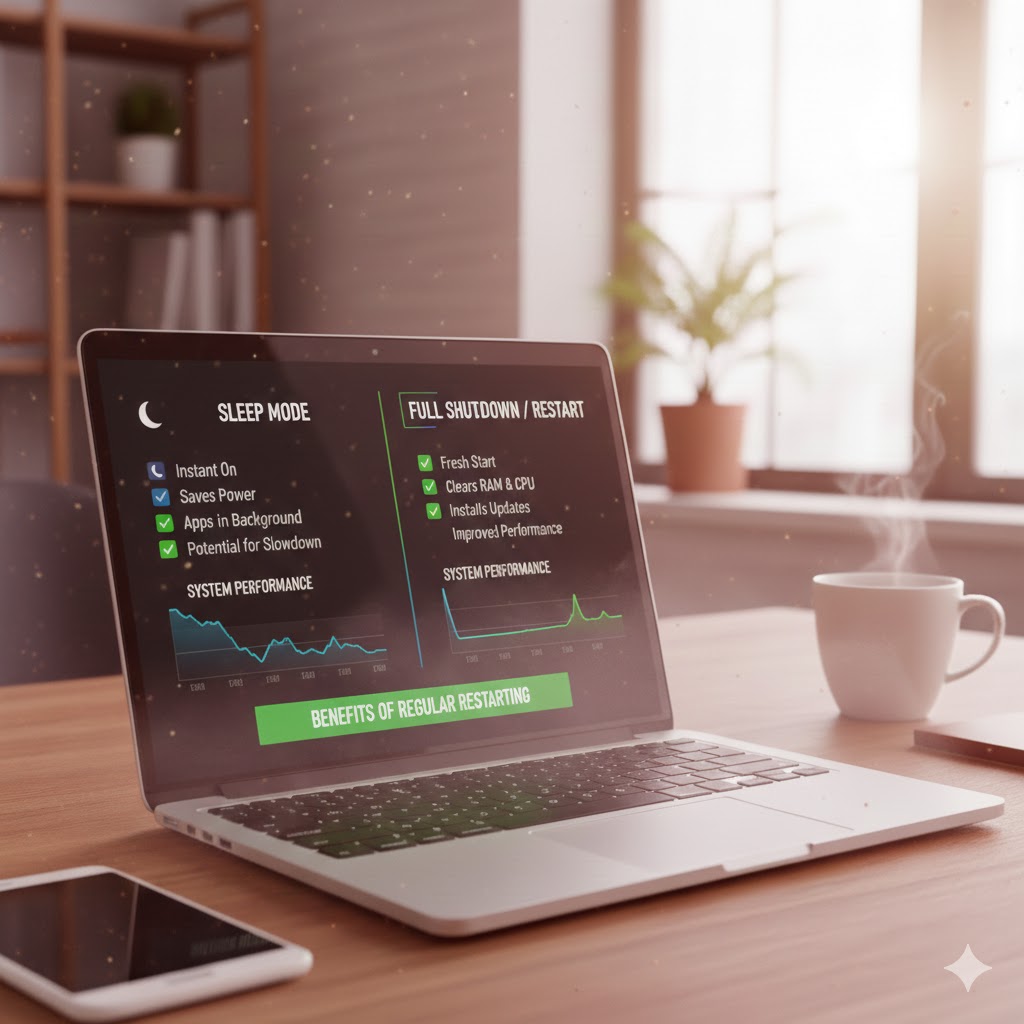
Sleep mode keeps the system on in low-power state. However, background processes, cached data, and memory leaks may still accumulate. Therefore, while sleep is convenient, it does not replace a proper shutdown. Restarting once or twice per week maintains optimal performance.
H3: battery health and shutdowns
Additionally, leaving a laptop on continuously can stress the battery, especially in older models. Lithium-ion batteries benefit from occasional full power cycles. Consequently, proper shutdown habits indirectly extend battery longevity.
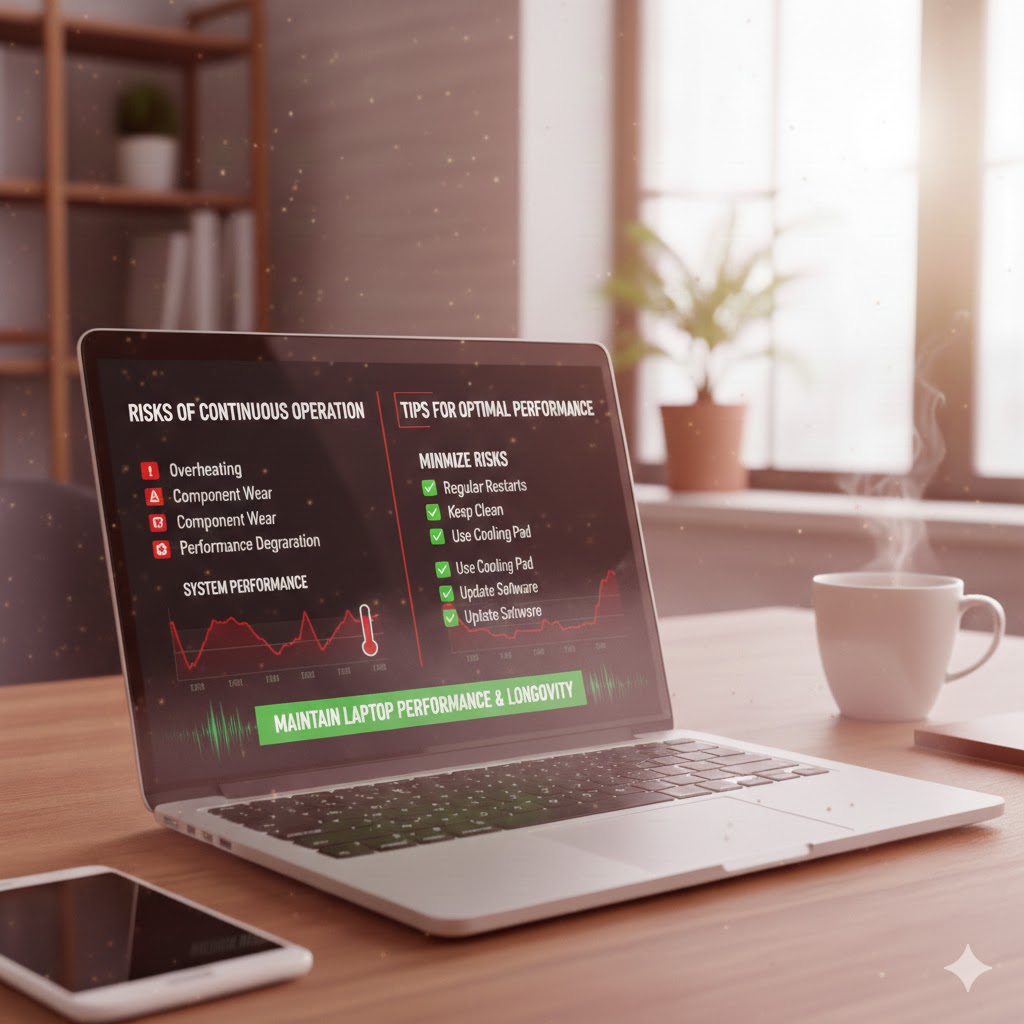
H2: How to Minimize Risks If You Rarely Shut Down
Even if you don’t want to power off frequently, you can protect your laptop using these steps:
- Close unused applications – reduces CPU & RAM load
- Monitor temperatures – use HWMonitor or Core Temp
- Use sleep mode instead of leaving apps open -conserves energy
- Restart at least once per week – clears memory leaks and caches
- Ensure proper ventilation -avoid soft surfaces and dusty vents
- Install updates regularly – maintain software security
H2: When Never Shutting Down Is Acceptable
In some scenarios, continuous operation is reasonable:
- Servers or systems running critical tasks
- Downloading large files overnight
- Remote work computers needing constant connection
Even then, monitoring temperature and system resources is essential. Otherwise, the laptop may overheat or performance can degrade gradually.
Reference: Laptop Heat Management Guide
H2: Quick Checklist for Safe Continuous Use
- Ensure fans and vents are clean
- Monitor CPU and GPU temperatures
- Close unused applications
- Avoid stacking heavy software continuously
- Restart weekly to clear temporary data
FAQs : Never Shut Down Laptop: Risks, Effects, and Fixes
Q1: Is it bad to never shut down a laptop?
A: Indeed, leaving your laptop on continuously can affect performance over time. While modern operating systems are designed to handle long uptime, background processes, memory usage, and temporary files can accumulate. Consequently, this may lead to slower performance, overheating, or system glitches. However, occasional sleep mode use is fine the real issue arises when the system is never fully restarted.
Q2: What happens if I only use sleep mode and never shut down?
A: Generally, sleep mode saves power and allows quick resume. However, it does not fully clear RAM or reset system processes. As a result, minor software bugs may persist, updates may not install properly, and system resources may remain tied up. Therefore, periodic shutdowns or restarts help maintain system stability.
Q3: Can never shutting down damage hardware?
A: Not immediately, but prolonged heat exposure can shorten component lifespan. Moreover, continuous operation keeps internal components like the CPU and cooling fan active, which may increase wear over time. Thus, giving your laptop rest periods can improve longevity.
Q4: How often should I shut down my laptop?
A: Ideally, shutting down at least once a week is beneficial. Additionally, restarting after major updates ensures your system runs efficiently. Ultimately, balanced usage between sleep mode and shutdown keeps performance optimal.
Further Thoughts
Never shutting down a laptop might seem convenient, especially for work or study routines. However, convenience does not always equal efficiency. In fact, regular shutdowns help clear memory, reset system processes, and allow updates to complete properly.
Moreover, modern laptops are powerful, yet they still rely on proper thermal management. Continuous usage generates heat, and over time, heat is one of the biggest threats to hardware longevity. Consequently, failing to power off occasionally may increase internal wear, particularly in compact laptops with limited cooling systems.
On the other hand, completely shutting down daily may not be necessary either. Sleep and hibernate modes are designed for short breaks. Therefore, understanding when to shut down versus when to sleep is key. For example, shutting down overnight or during long breaks gives your device a full reset and reduces background resource strain.
Ultimately, adopting balanced power habits ensures better performance, longer hardware life, and fewer unexpected system slowdowns.
Conclusion
In conclusion, the issue of “Never Shut Down Laptop Risks, Effects, and Fixes” highlights the importance of smart power management. Indeed, while modern laptops can stay on for extended periods, continuous uptime may gradually reduce efficiency and increase heat-related wear.
Moreover, occasional shutdowns clear memory, complete updates, and refresh system processes. Therefore, instead of relying solely on sleep mode, incorporate regular restarts or shutdowns into your routine. Consequently, your laptop will perform faster, run cooler, and maintain long-term reliability.
Ultimately, balanced usage combining sleep mode for short breaks and shutdowns for extended downtime provides the best approach. By adopting this habit, you not only improve system performance but also extend the overall lifespan of your laptop.




2 Comments