
WiFi Connected But No Internet :Fix Permanently
Introduction
Experiencing a situation where your device shows WiFi connected but no internet can be frustrating and confusing. Indeed, everything seems fine on the surface your device is connected to the network yet you cannot browse websites, stream content, or complete online tasks. Moreover, this issue is surprisingly common for both home users and small offices, and it can happen for a variety of reasons, including router misconfigurations, ISP interruptions, or network conflicts.
Fortunately, understanding the root causes and applying practical solutions can permanently fix this problem. As a result, you can restore reliable internet access, avoid repeated disruptions, and improve overall network performance. In this guide, we will walk you through step-by-step fixes, preventive measures, and expert tips to ensure that your WiFi connection works seamlessly every time.
Why WiFi Connected But No Internet Happens
When your device connects to WiFi, it only connects to the router, not the internet itself.
Think of it like this:
- Router = Your house gate
- Internet = The road outside
You entered the gate… but the road is blocked.
So your device shows connected, but data cannot reach Google servers.
Common Causes of WiFi Connected But No Internet
- Router has internet outage
- ISP network downtime
- Wrong IP address assignment
- DNS server failure
- Too many connected devices
- Expired DHCP lease
- Corrupted network cache
- Firewall or security blocking connection
Step 1: Restart Everything (Most Important Fix):WiFi Connected But No Internet


4
This fixes nearly 50% of cases.
How to do it correctly
- Turn off WiFi on your phone or laptop
- Unplug router power cable
- Wait 30 seconds (important)
- Plug back in
- Wait 2–3 minutes
- Reconnect WiFi
Why it works:
The router clears memory and requests a fresh connection from your ISP.
Step 2: Check If Internet Is Down (ISP Problem)
Before changing settings, confirm the issue is not from your provider.
Try:
- Another phone
- Mobile data hotspot
- Visiting this link:
If other networks work → your router is the issue
If none work → ISP outage
Step 3: Fix WiFi Connected But No Internet by Reconnecting Network
Corrupted saved settings often cause the problem.
Android / iPhone
- Settings → WiFi
- Tap network name
- Forget network
- Reconnect and enter password
Windows
- Settings → Network & Internet
- Manage Known Networks
- Forget → reconnect
Step 4: Fix IP Conflict Causing Connected But No Internet
Your device might have wrong network identity.
Windows Solution
Open Command Prompt and type:
ipconfig /release
ipconfig /renew
ipconfig /flushdns
Android Solution
- WiFi → Network → Advanced
- Change IP Settings to DHCP
Step 5: Change DNS to Solve WiFi Connected But No Internet


4
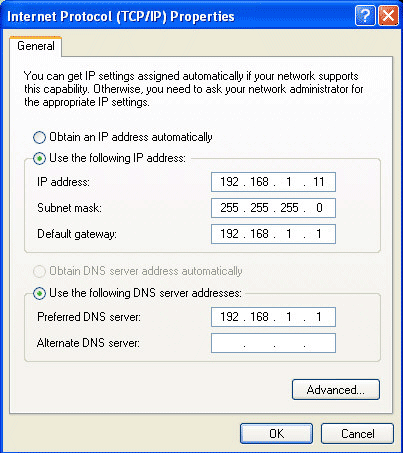
Sometimes internet exists but DNS cannot find websites.
Use Google DNS:
Primary: 8.8.8.8
Secondary: 8.8.4.4
Or Cloudflare:
Primary: 1.1.1.1
Secondary: 1.0.0.1
After changing, reconnect WiFi.
Step 6: Disable VPN or Security Apps
VPNs and firewall apps often block internet while WiFi remains connected.
Check:
- VPN apps
- Antivirus firewall
- Ad blockers
- Private DNS apps
Temporarily disable them and test again.
Step 7: Router Connected But No Internet: Router Settings Fix
Login to your router:
192.168.1.1
or
192.168.0.1
Look for:
WAN Status
Should show: Connected
If it shows:
Disconnected / No IP / Authentication Failed
Your ISP is the cause.
Step 8: Too Many Connected Devices
Routers (especially ISP routers) fail after about 10–20 devices.
Symptoms:
- WhatsApp works
- YouTube fails
- Google loads slowly
Fix:
- Disconnect unused devices
- Reboot router
- Upgrade router
Step 9: Update Router Firmware

4
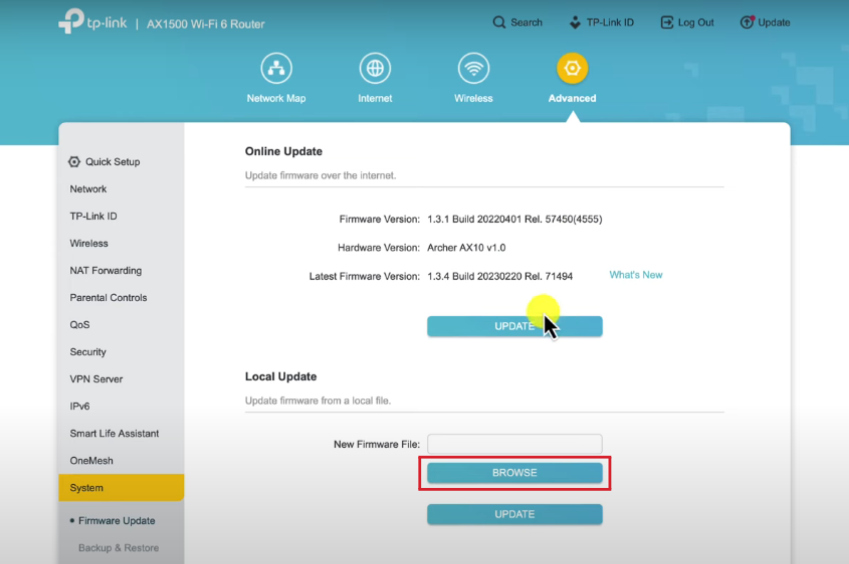
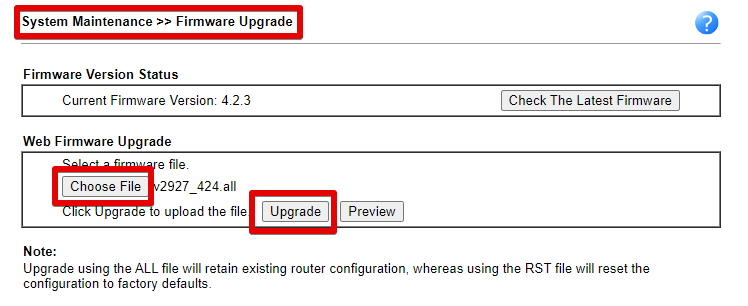
Old firmware causes connection handshake failure.
Steps:
- Login router
- System → Firmware
- Check update
- Install and reboot
Step 10: Reset Network Settings (Last Device Fix)
Android
Settings → System → Reset → Network Reset
Windows
Settings → Network → Network Reset
iPhone
Settings → General → Transfer or Reset → Reset Network Settings
Step 11: Factory Reset Router (Final Solution)
Hold reset button 10 seconds
Warning:
WiFi name and password will delete.
After reset, reconfigure internet settings from ISP.
How to Prevent This Problem
- Restart router weekly
- Avoid overloading devices
- Use quality router
- Change DNS permanently
- Keep firmware updated
- Avoid cheap repeaters
FAQs: WiFi Connected But No Internet
Q1: Why does my device show “Connected to WiFi” but still has no internet?
A: Indeed, this usually happens when your router is connected but the internet service is down, or there is an IP address or DNS conflict. Moreover, software or firmware issues on your device can also prevent internet access.
Q2: Can restarting my router permanently fix this issue?
A: While restarting the router often solves temporary connectivity issues, it may not address underlying problems like outdated firmware, ISP interruptions, or network configuration errors. Therefore, permanent solutions usually require further troubleshooting.
Q3: How can I fix WiFi no internet issues on Windows or Mac?
A: Firstly, check your network settings, clear DNS cache, and reset the network adapter. Additionally, updating drivers and firmware can prevent recurring issues. Consequently, combining these steps usually restores stable internet access.
Q4: Are there preventive measures to avoid WiFi connection problems?
A: Absolutely. Regularly updating your router firmware, using strong passwords, optimizing router placement, and occasionally rebooting your network can reduce connection issues. Furthermore, using reliable DNS servers can enhance stability.
Further Thoughts
Experiencing a “WiFi connected but no internet” problem can be frustrating, yet it also highlights the importance of understanding your network infrastructure. As more devices rely on constant connectivity, even minor issues can disrupt productivity. Moreover, permanent fixes often involve a combination of hardware checks, software updates, and proper configuration.
Consequently, investing time to learn basic network troubleshooting skills empowers both home users and small businesses to solve problems quickly. Ultimately, a reliable WiFi setup is not only about speed but also about stability and security, which are critical in our increasingly connected world.
Conclusion
In conclusion, a WiFi connection without internet access is a common but solvable issue. Indeed, temporary fixes like restarting devices help, however, addressing the root cause ensures long-term stability. Moreover, regular maintenance, firmware updates, and proper network configuration prevent recurring problems.
Therefore, by combining proactive troubleshooting with smart network management, users can enjoy consistent and secure internet access. Ultimately, understanding how to fix these issues permanently not only improves connectivity but also enhances productivity, efficiency, and peace of mind in both home and office environments.


One Comment