
Why Your Wi-Fi Slow on Laptop but Fast on Phone Fix it.
Introduction: Wi-Fi Slow on Laptop? Here’s Why It’s Faster on Your Phone and How to Fix It
If your Wi-Fi is slow on laptop but lightning-fast on your phone, you’re not alone. Many users notice that while smartphones can stream, browse, and download without a hiccup, their laptops struggle to load even simple websites. This issue often causes frustration, especially when working from home or using limited data.
In this article, we’ll explore why this happens, the underlying causes, and practical fixes that actually improve your laptop’s Wi-Fi speed. Additionally, we’ll include screenshots, internal links to related guides, and external references to provide complete solutions.
H2: wifi slow on laptop; Common Causes
Understanding the root cause is critical before applying fixes. Several factors can make laptops slower than phones, including hardware, software, and network settings.
H3: Outdated Network Drivers
Laptop network drivers may be outdated, missing critical updates, or incompatible with your Wi-Fi hardware. Smartphones update automatically via OS updates, so they often maintain faster connections.
Fix:
- Open Device Manager → Network adapters → Update driver
- Visit manufacturer’s website for the latest driver version
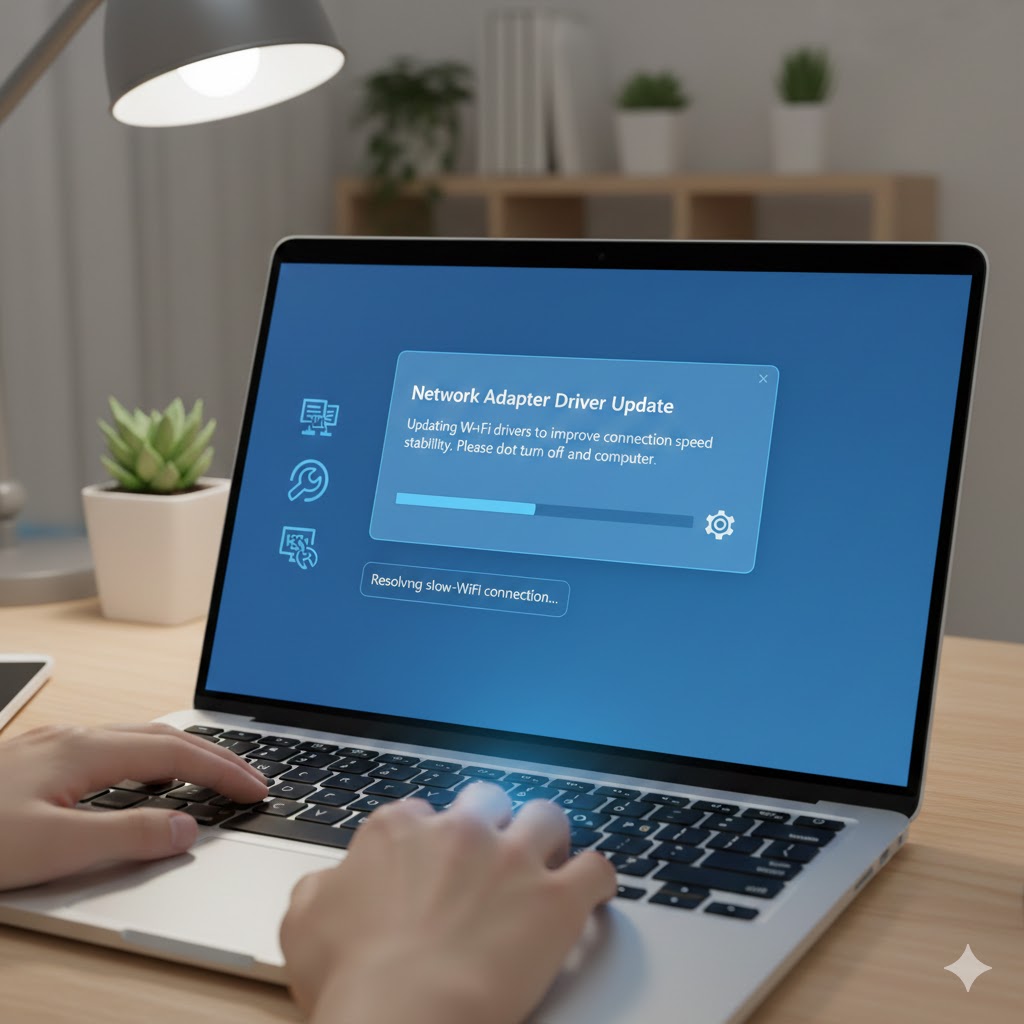
reference: support.microsoft:
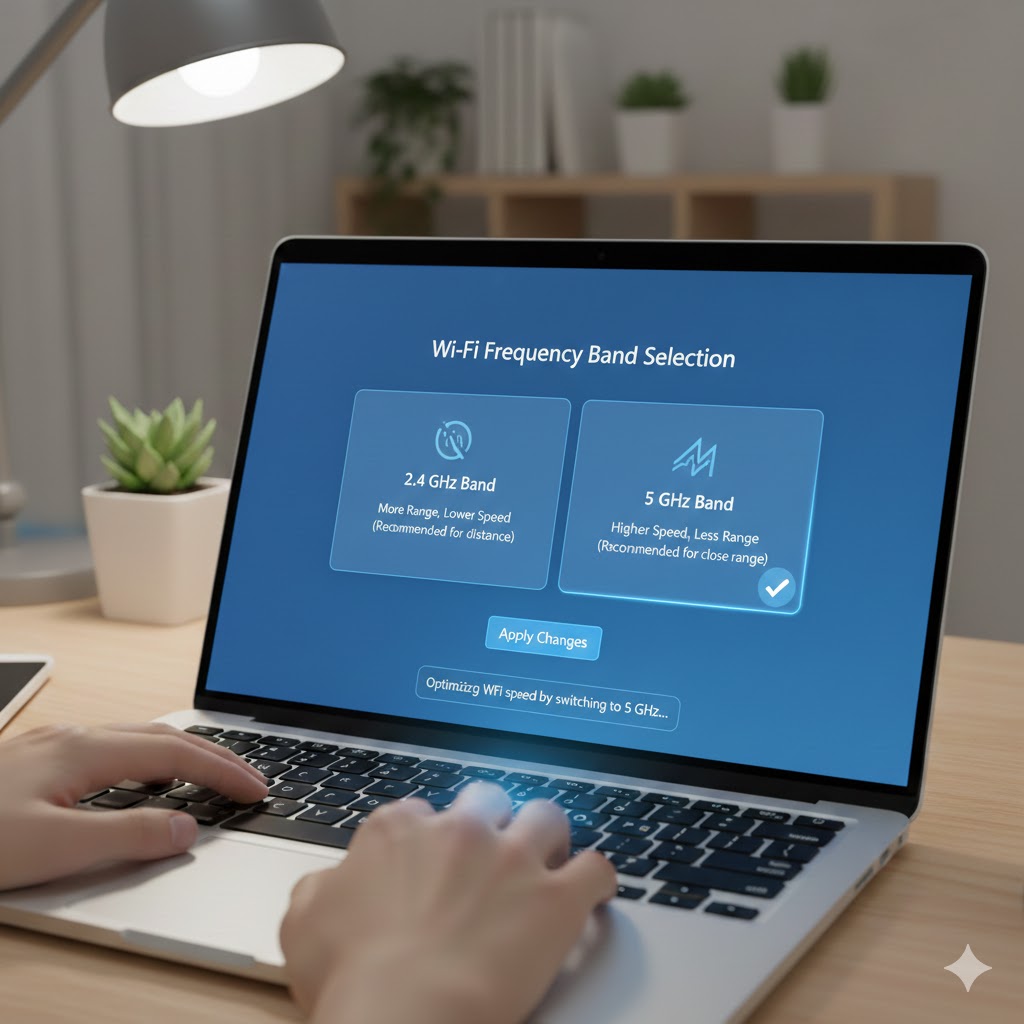
H3: Wi-Fi Frequency Bands (2.4 GHz vs 5 GHz)
Phones often switch seamlessly between 2.4 GHz and 5 GHz networks. Laptops may stay on one band, often 2.4 GHz, which is slower and more congested.
Fix:
- Open Wi-Fi settings → Check frequency band
- Connect to 5 GHz for faster speeds if supported
H3: Network Adapter Power Settings
Windows may reduce Wi-Fi adapter power to save battery. Consequently, speed drops significantly, especially on laptops.
Fix:
- Control Panel → Device Manager → Network Adapter → Properties → Power Management → Uncheck “Allow the computer to turn off this device to save power”
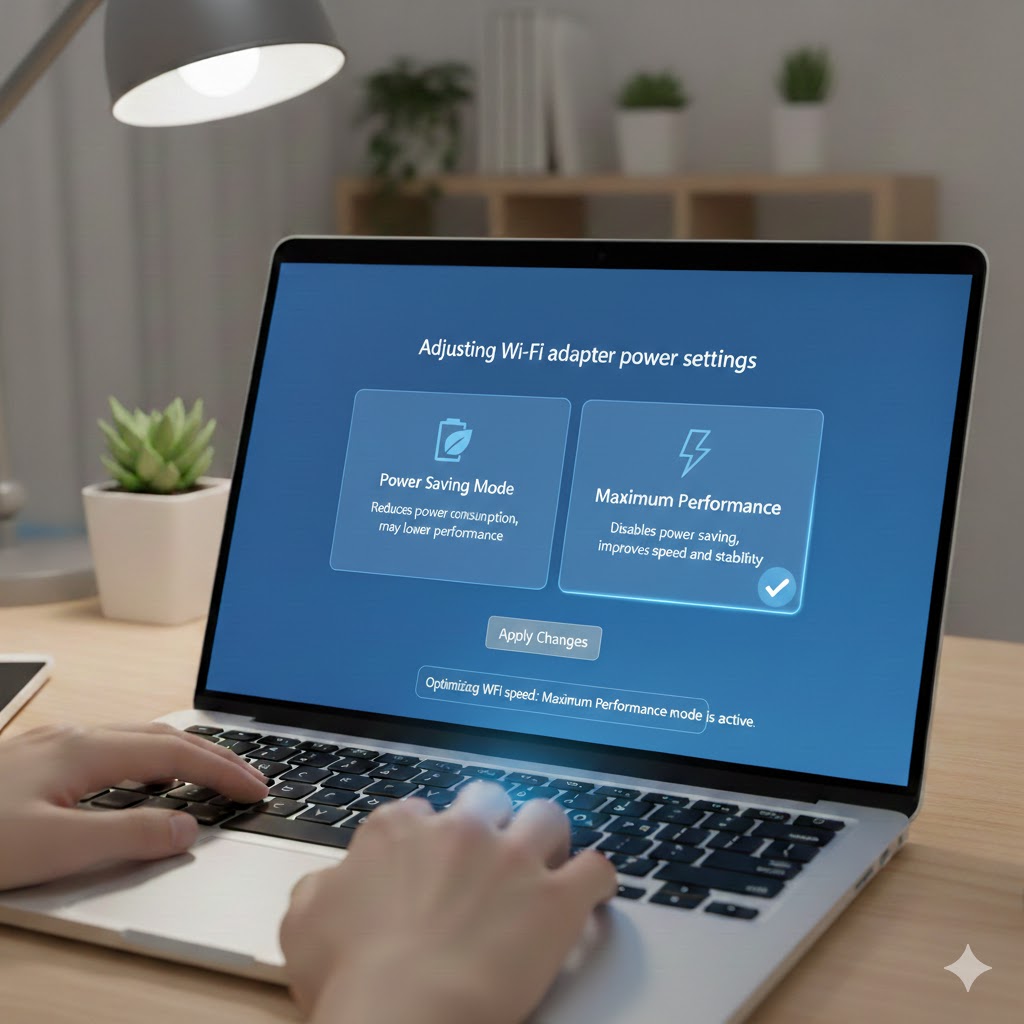
Adjusting Wi-Fi adapter power settings to fix slow laptop Wi-Fi
H3: Router Settings and Distance
Sometimes the router prioritizes devices differently. Phones may get better quality because they support modern Wi-Fi standards (Wi-Fi 6 or 5), whereas laptops may be older.
Fix:
- Move laptop closer to router
- Update router firmware
- Enable Quality of Service (QoS) for critical devices
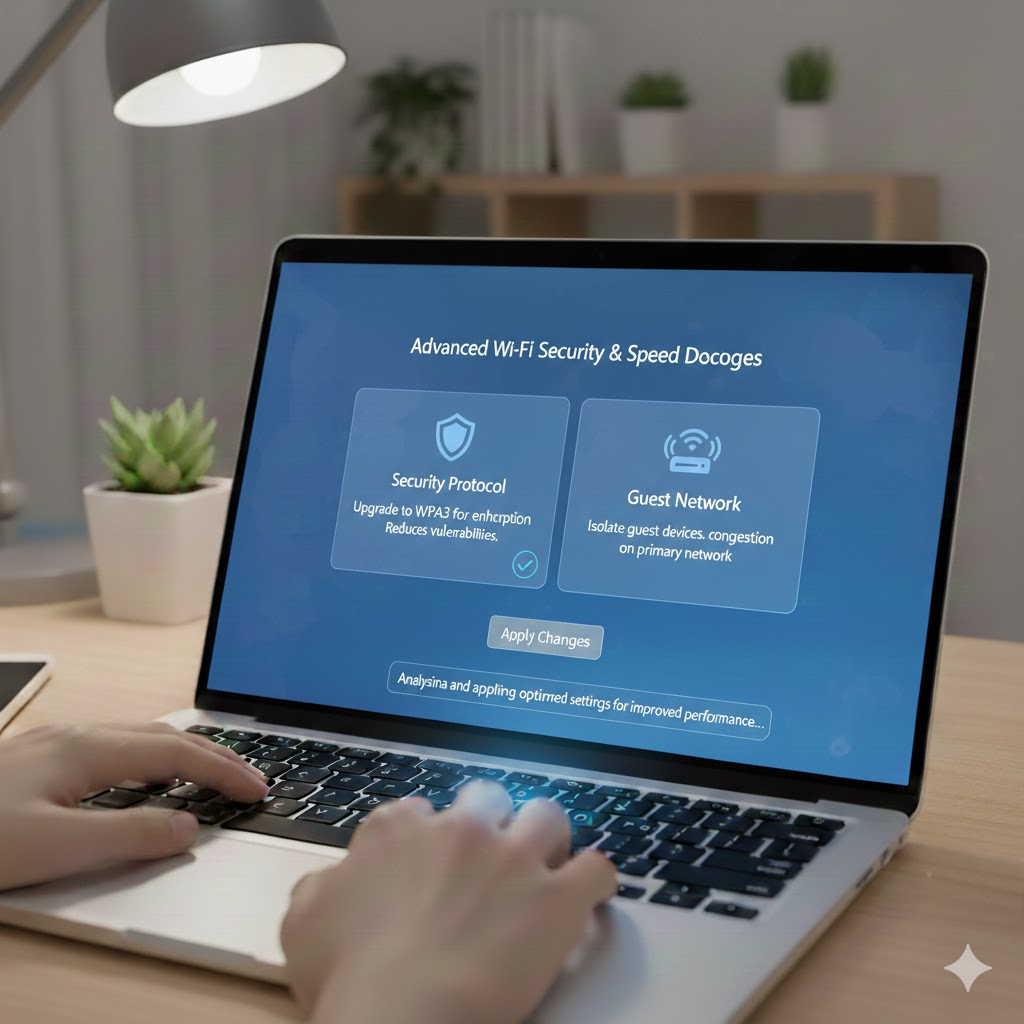
H3: Interference from Other Devices
Microwaves, cordless phones, and neighboring networks can interfere with Wi-Fi signals. Phones are better at handling interference than some laptop network cards.
Fix:
- Switch to a different channel
- Use 5 GHz band to avoid interference
H2: wifi slow on laptop; Software and OS Factors
Software can also reduce laptop speed even if hardware and router are perfect.
H3: Background Apps and Updates
Laptops run more background processes than phones cloud syncing, Windows updates, antivirus scans, and other apps consume bandwidth silently.
Fix:
- Pause OneDrive, Google Drive syncing
- Close unnecessary apps
- Pause Windows updates temporarily
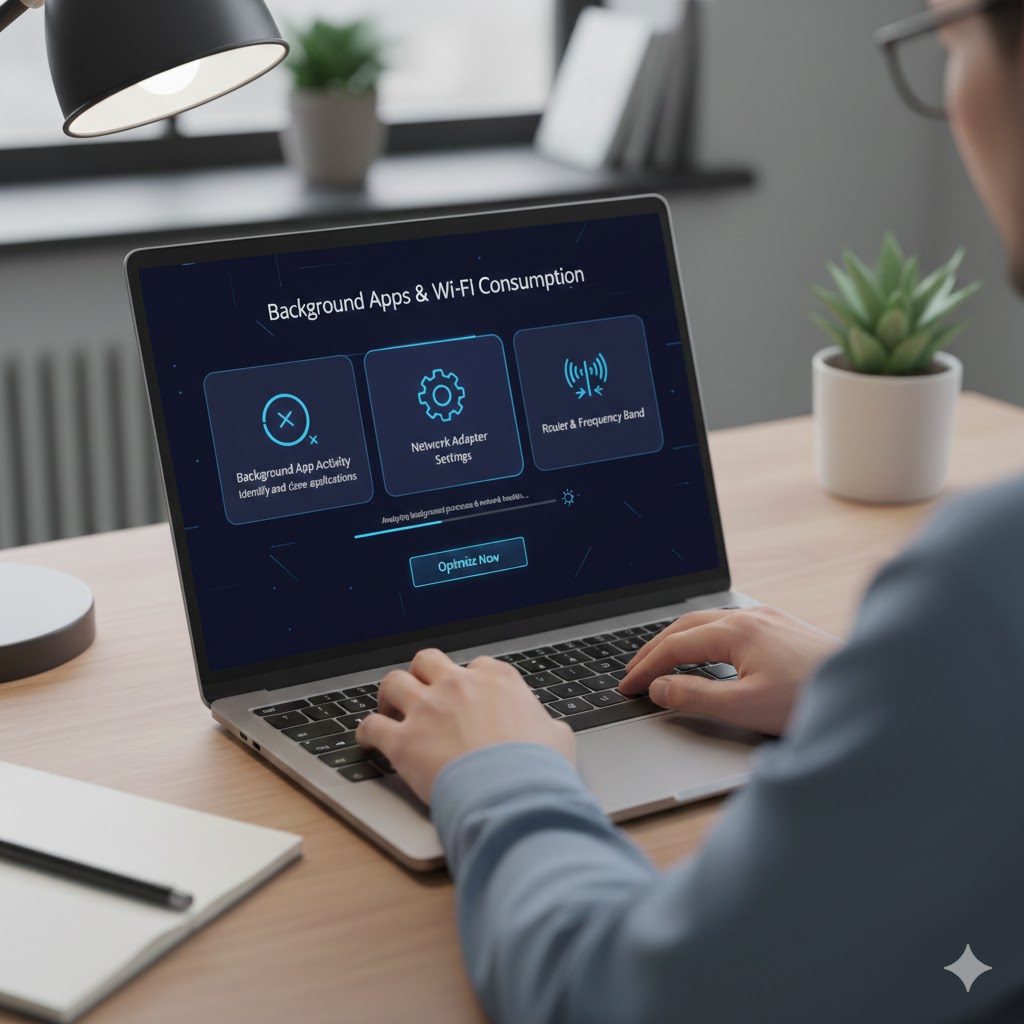
Follow the link to learn how to reduce data usage:
- How to Reduce Data Usage Windows 10 and 11
H3: VPN and Proxy Settings
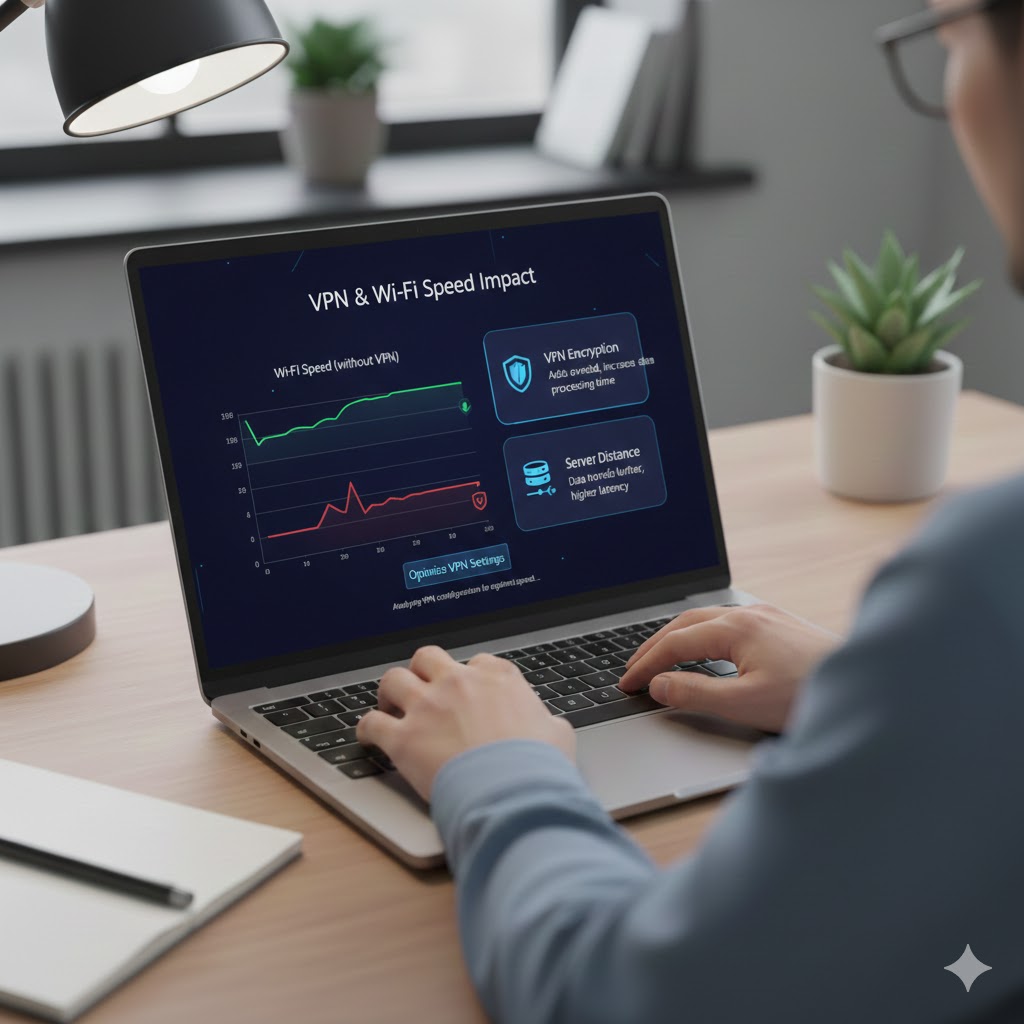
Using VPNs or proxy servers can route traffic inefficiently. Phones often auto-optimize VPN connections better than laptops.
Fix:
- Disconnect VPN temporarily to test speed
- Use a lightweight or optimized VPN
H3: Browser and DNS Settings
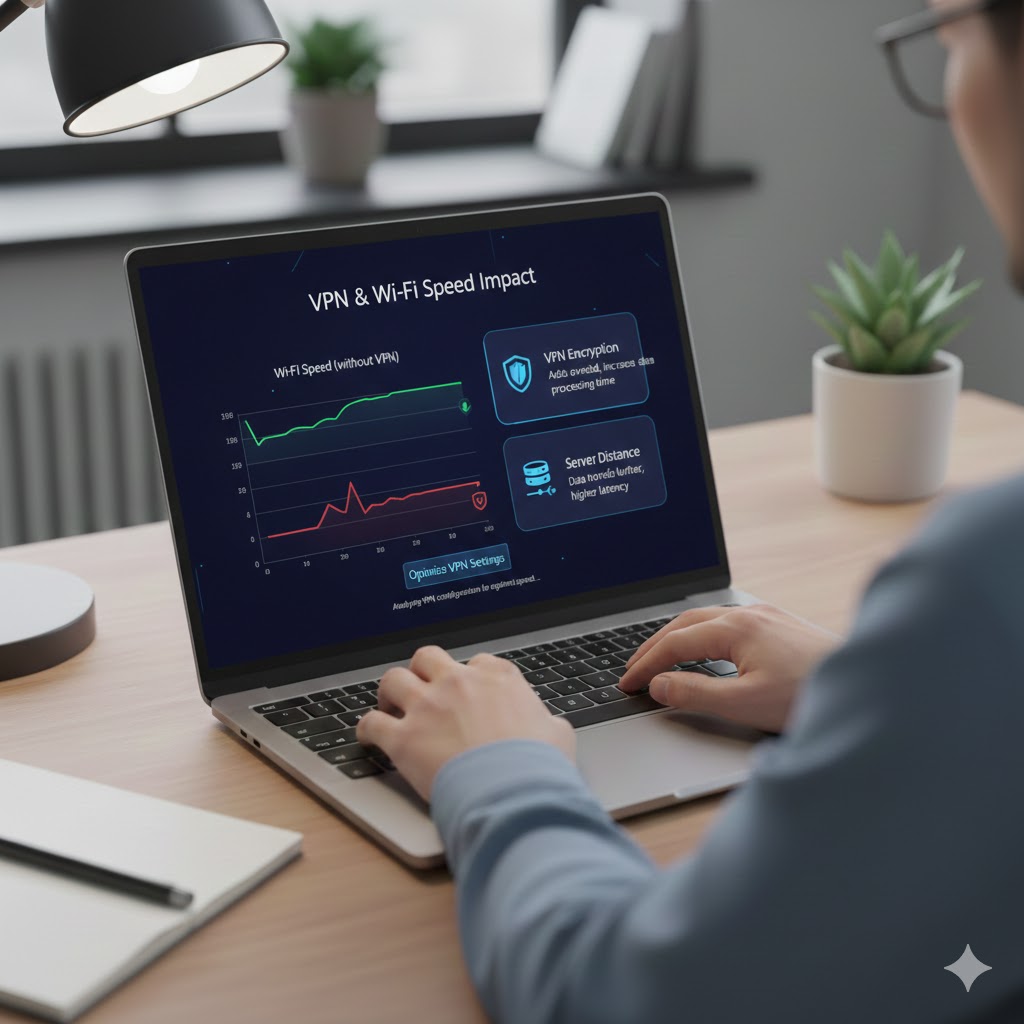
Browsers preload content differently, and laptops often use slower DNS servers.
Fix:
- First, Switch to faster DNS (Google DNS: 8.8.8.8, 8.8.4.4)
- Then, Clear browser cache
- Finaly, Enable lightweight browser modes
External reference: developers.google.
H2: wifi slow on laptop; Hardware Limitations
Older Wi-Fi adapters, slower antennas, or physical damage can prevent laptops from reaching phone-level speeds.
H3: Upgrade Wi-Fi Adapter
USB or PCIe Wi-Fi cards with modern standards (Wi-Fi 5/6) often solve speed limitations.
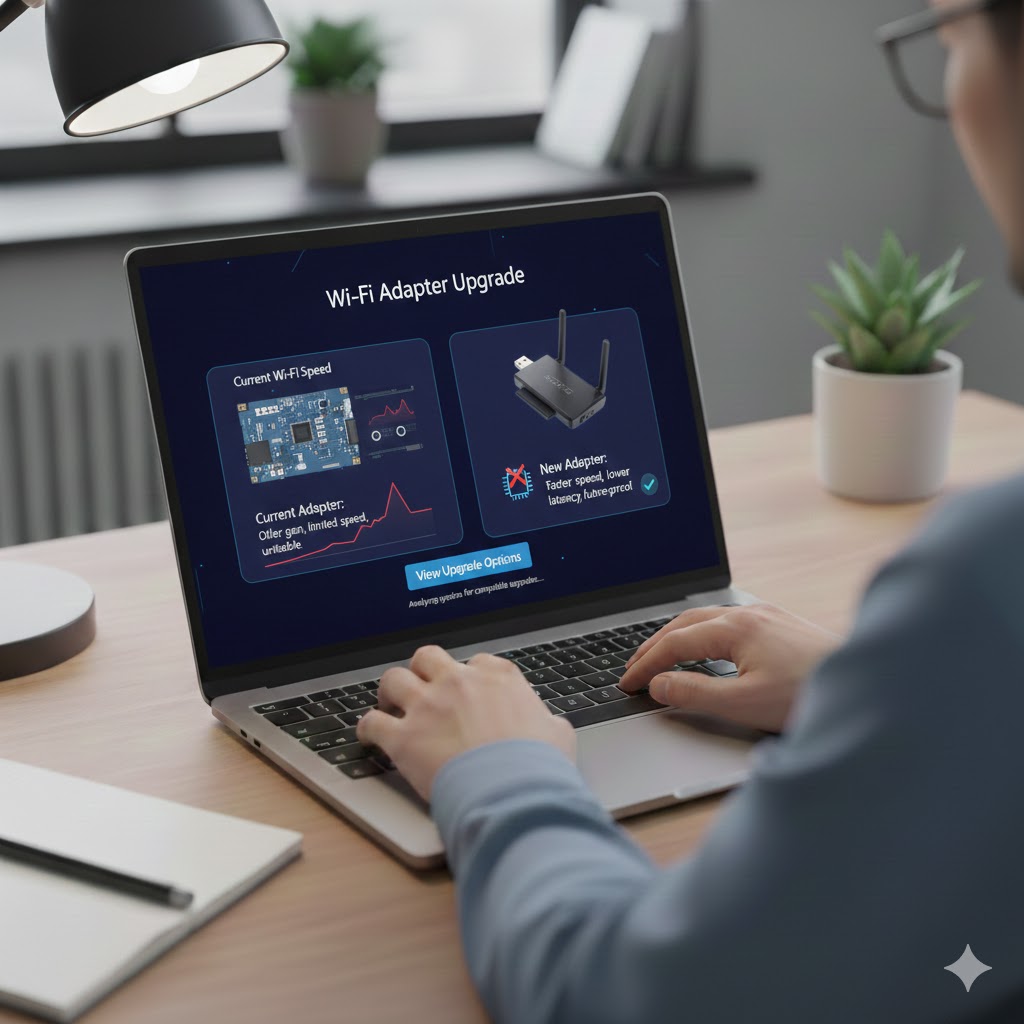
Upgrading Wi-Fi adapter to fix slow laptop internet
H3: Check Laptop Antennas
Internal antennas may be obstructed or damaged, reducing signal strength.
Fix:
- Check internal antenna connections if comfortable
- Or use an external Wi-Fi USB adapter

H2: wifi slow on laptop; Advanced Network Tweaks
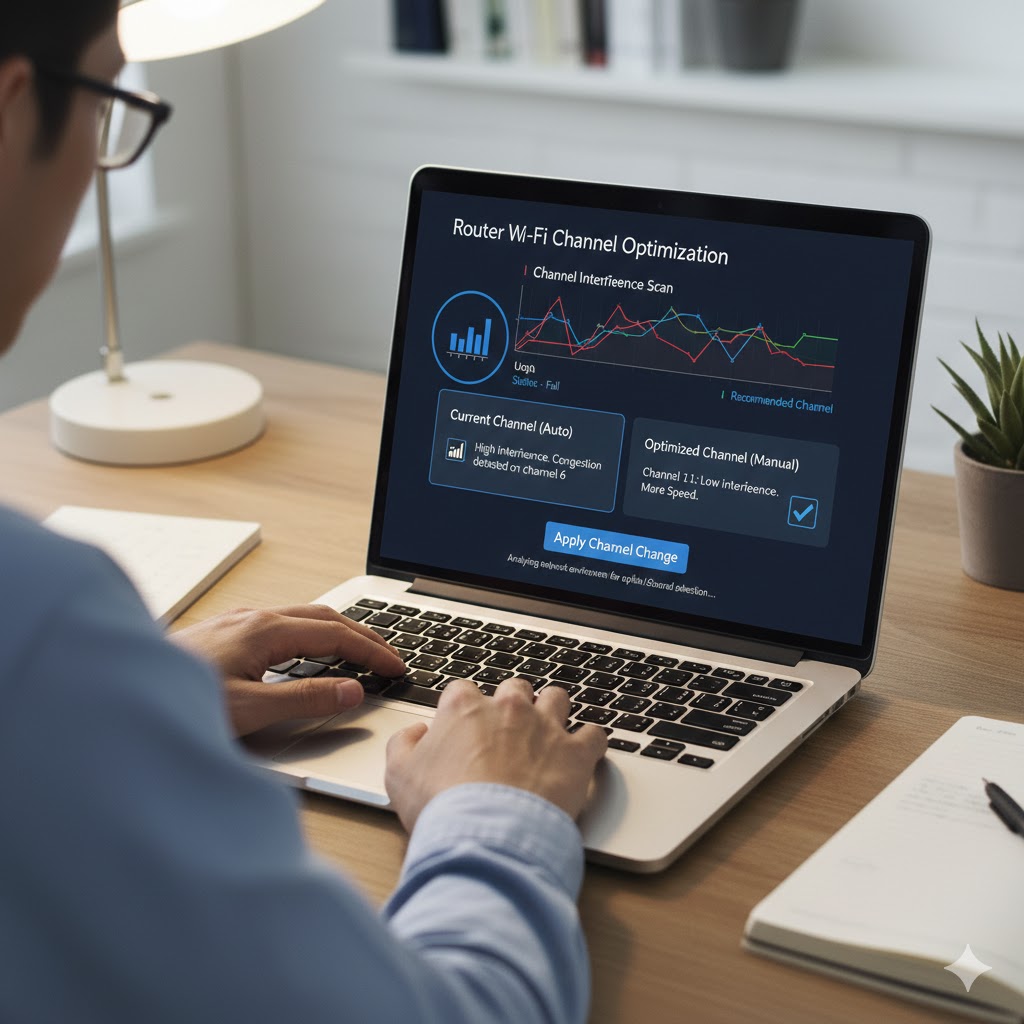
H3: Change Wireless Channel
Use router interface to switch Wi-Fi channel to reduce interference.
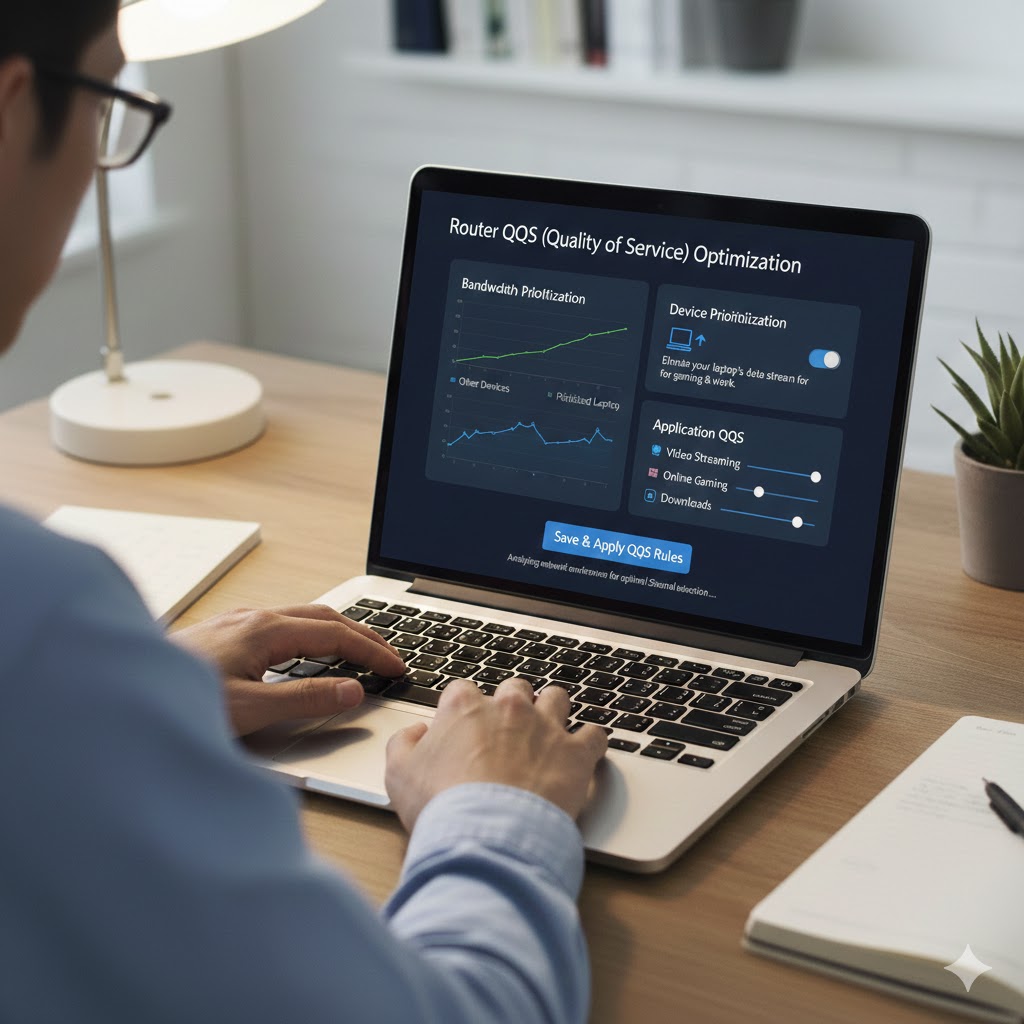
H3: Enable QoS (Quality of Service)
Prioritize your laptop or streaming apps to receive more bandwidth.
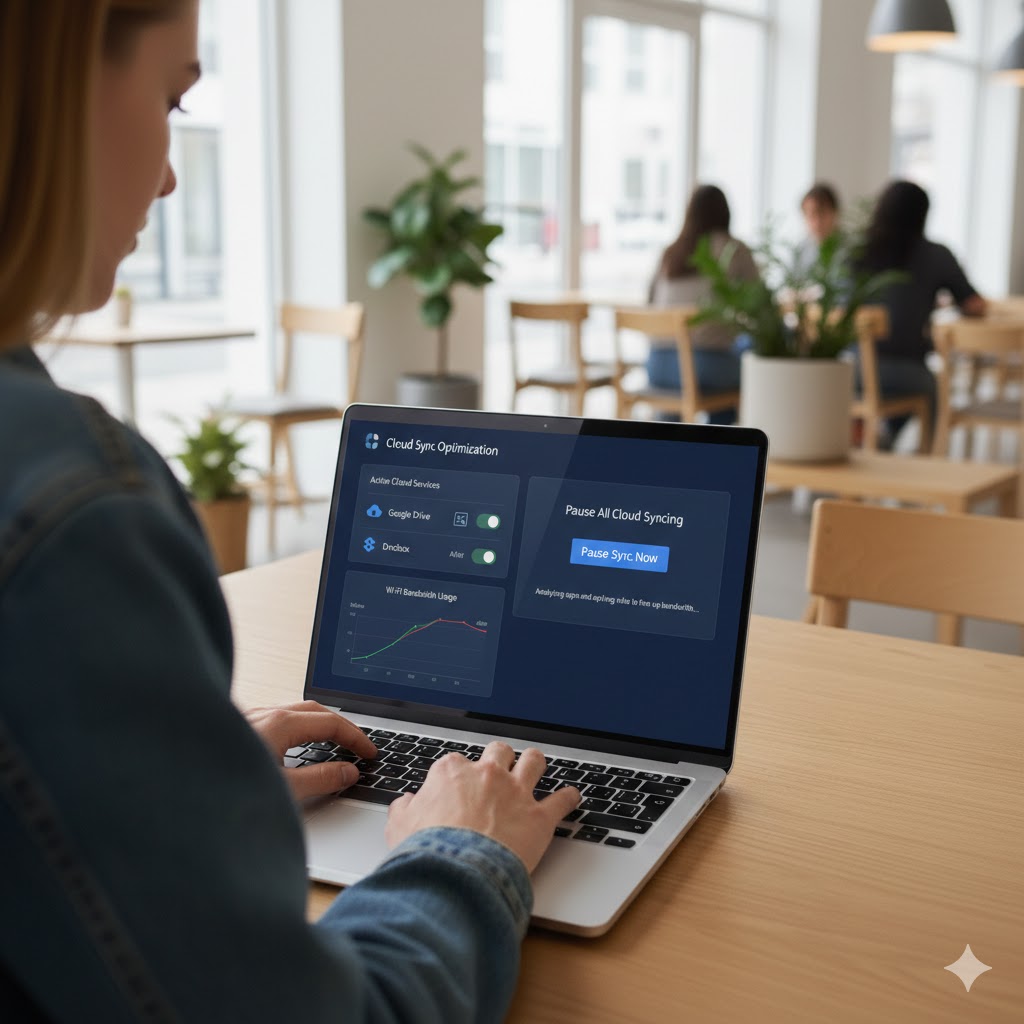
H3: Limit Background Sync and Cloud Services
Stop OneDrive, Google Drive, or Dropbox from syncing large files while browsing or streaming.
H2: Tips for Maintaining Fast Laptop Wi-Fi
- Keep drivers updated
- Avoid physical obstacles
- Use 5 GHz band whenever possible
- Pause unnecessary background apps
- Use QoS for high-priority tasks
FAQs
Q1: Why is Wi-Fi faster on my phone than laptop?
A: Phones have modern Wi-Fi standards, better auto-optimization, and fewer background processes than laptops.
Q2: Does Windows power saving affect Wi-Fi speed?
A: Yes. Reducing power on network adapters can slow internet. Adjust power settings for better performance.
Q3: Can VPN slow down my laptop Wi-Fi?
A: Absolutely. VPNs route traffic differently, increasing latency and reducing speed.
Q4: Will upgrading Wi-Fi adapter help?
A: Yes, a modern Wi-Fi 5/6 adapter can significantly improve speed if your laptop uses older hardware.
Further Thoughts
If your Wi-Fi is slow on laptop but fast on your phone, the issue is often your laptop’s settings, hardware, or background apps rather than your internet connection. Phones automatically optimize speed, while laptops may need updates, driver fixes, or network tweaks.
To improve performance, first, keep network drivers updated, then limit background apps and cloud syncing, and also check your power settings. Furthermore, using the 5 GHz Wi-Fi band, optimizing router channels, and enabling QoS can make a noticeable difference.
By applying these steps and understanding these factors, your laptop Wi-Fi can become much faster and more reliable, therefore giving you a smooth experience similar to your phone.
Conclusion
Experiencing Wi-Fi slow on laptop while your phone runs smoothly can be frustrating, but it’s a common issue with practical solutions. Most of the time, the problem is not your internet connection but a combination of laptop hardware, outdated drivers, background apps, network settings, and Wi-Fi frequency limitations.
By following the fixes in this guide updating network drivers, adjusting power settings, controlling background apps, switching Wi-Fi bands, and optimizing router settings you can significantly improve your laptop’s internet speed. Additionally, pausing cloud syncing, checking for interference, and upgrading Wi-Fi adapters when necessary ensures a consistent, fast connection.
Remember, because phones are often optimized for seamless network use, whereas laptops require a bit more configuration, therefore, following these steps will allow you to enjoy the same fast Wi-Fi on your laptop as you do on your phone. As a result, browsing, streaming, and online work become smooth and efficient.
Additionally, regularly monitoring your Wi-Fi performance and keeping your system updated will prevent future slowdowns, thus giving you reliable internet access whenever you need it.

2 Comments