
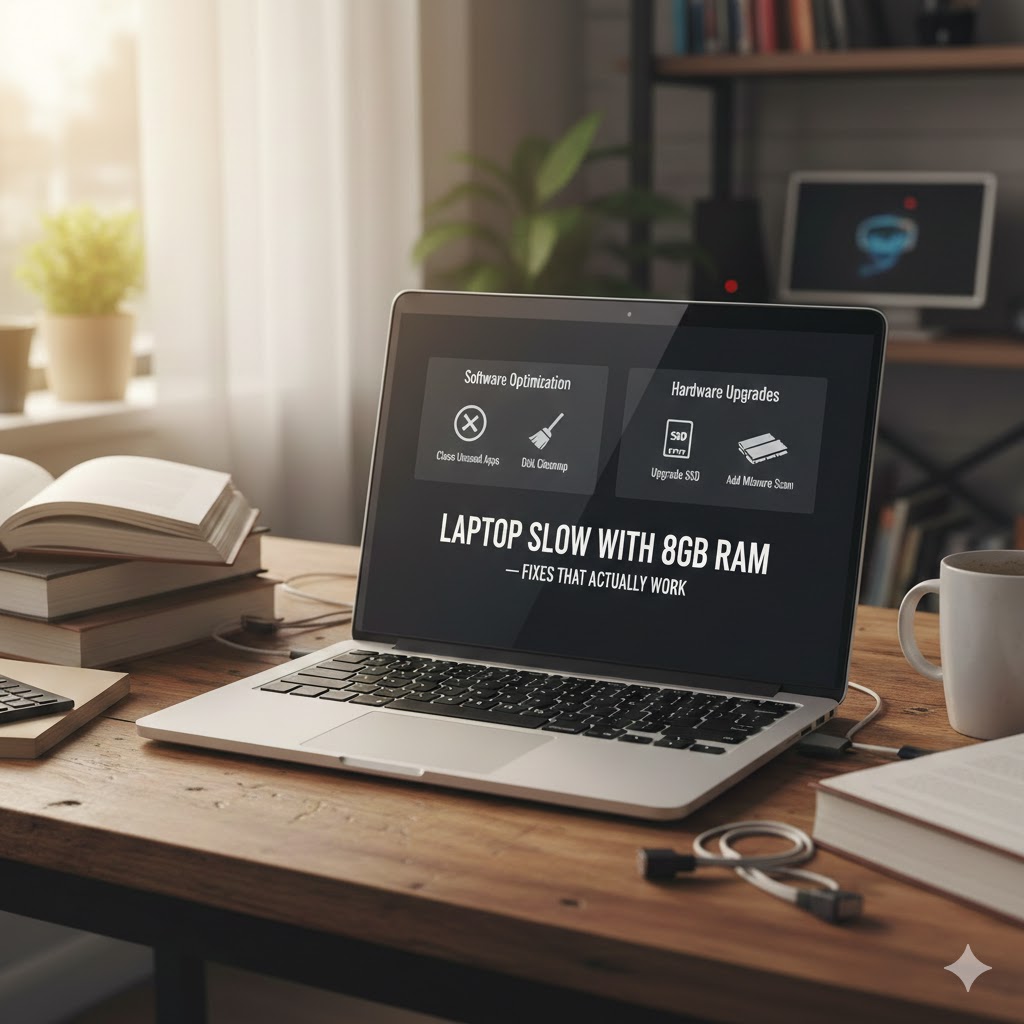
Laptop Slow With 8GB RAM; Fixes That Actually Work.
Why Your Laptop Is Slow Even With 8GB RAM (Fixes That Actually Work)
Introduction
If your laptop slow with 8GB RAM, you’re definitely not alone. Many people assume 8GB memory should guarantee smooth performance. However, that’s not always true. In reality, laptop speed depends on multiple components working together not RAM alone.
For example, you may open only a browser and Word, yet the system freezes. Meanwhile another laptop with the same RAM runs perfectly. Therefore the issue is configuration, not capacity.
In this guide, we’ll explain the real reasons behind slow performance and, more importantly, how to fix them without immediately buying a new computer.
H2: laptop slow with 8gb; The Real Reasons
H3: laptop slow with 8gb startup overload
First of all, startup programs are the number one hidden performance killer.
When Windows boots, it automatically launches apps such as:
- Teams
- Discord
- Adobe updater
- OneDrive
- Spotify
- Game launchers
Consequently, before you even click anything, your RAM is already half full.
Fix
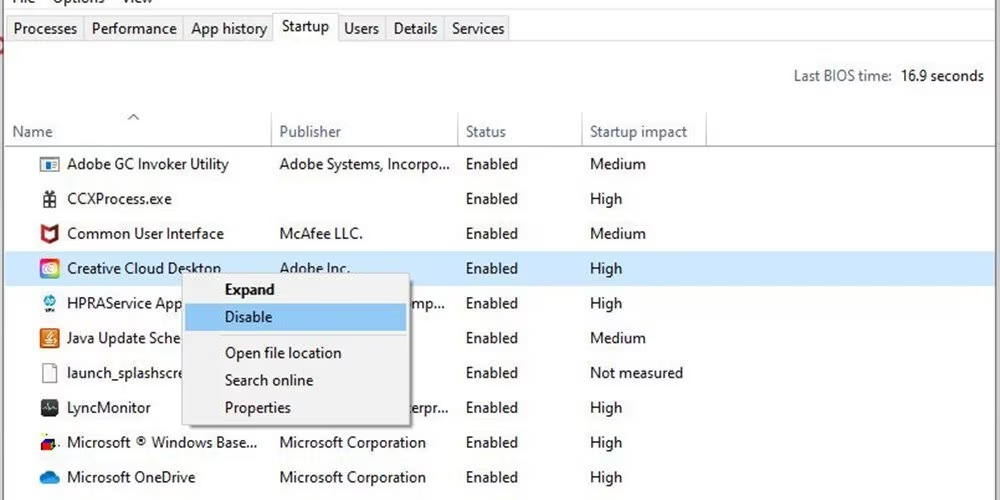
- Press Ctrl + Shift + Esc
- Open Startup tab
- Disable unnecessary programs
Afterwards, restart your laptop.
You will immediately notice faster boot time.
H3: laptop slow with 8gb storage problem (HDD vs SSD)
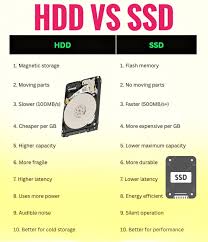
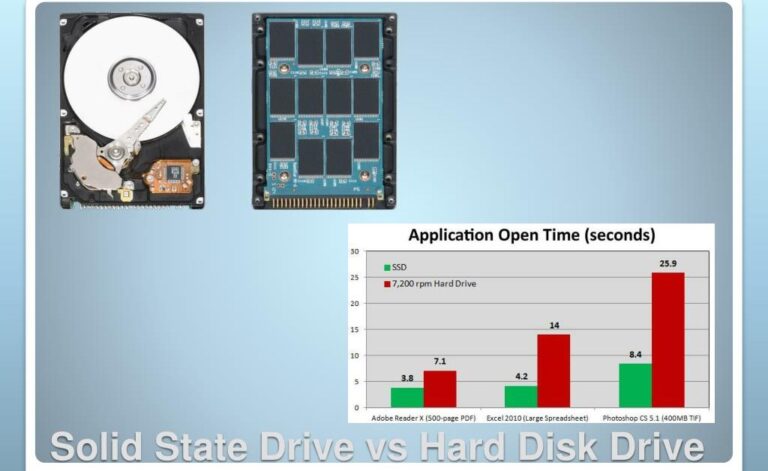
Most slow 8GB laptops actually suffer from slow storage, not insufficient memory.
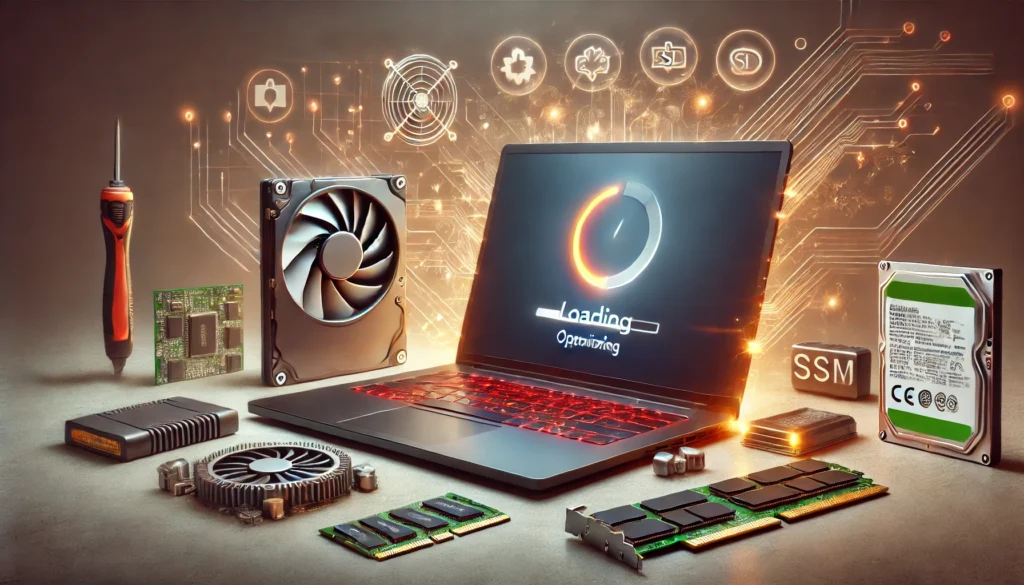
An HDD reads data mechanically.
Meanwhile an SSD reads data electronically.
Therefore:
| Storage | Boot Time | App Opening | Multitasking |
|---|---|---|---|
| HDD | Very slow | Laggy | Freezes |
| SSD | Instant | Smooth | Stable |
Even 16GB RAM cannot compensate for a slow hard drive.
Fix
Upgrade to SSD biggest speed improvement possible.
After upgrading, laptops typically become 3x to 10x faster.
H3: laptop slow with 8gb browser memory usage
Modern browsers are basically mini operating systems.
For instance:
- One tab YouTube = 500MB RAM
- Gmail = 300MB
- Social media = 400MB+
Therefore 10 tabs can consume your entire memory.
Fixes
First, enable Memory Saver in Chrome
Settings → Performance → Memory Saver
Next, install a tab suspender extension
Finally, close unused tabs regularly
As a result, freezing disappears.
H3: laptop slow with 8gb background apps
Windows runs many apps silently.
Additionally, many manufacturers pre-install extra services.
These include:
- telemetry services
- update schedulers
- sync tools
- widgets
Consequently CPU usage spikes even when idle.
Fix
Settings → Privacy → Background apps
Turn off unnecessary programs
H3: laptop slow with 8gb visual effects
Windows animations look beautiful.
However they cost performance.
Therefore low-power CPUs struggle.
Fix
- Search Performance Options
- Select Adjust for best performance
Immediately windows feel snappier.
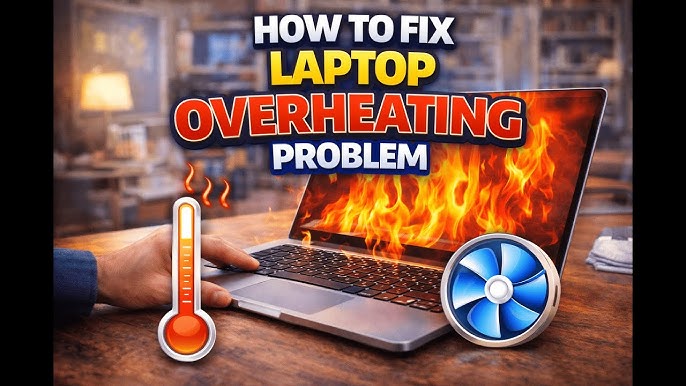
H2: laptop slow with 8gb overheating issue
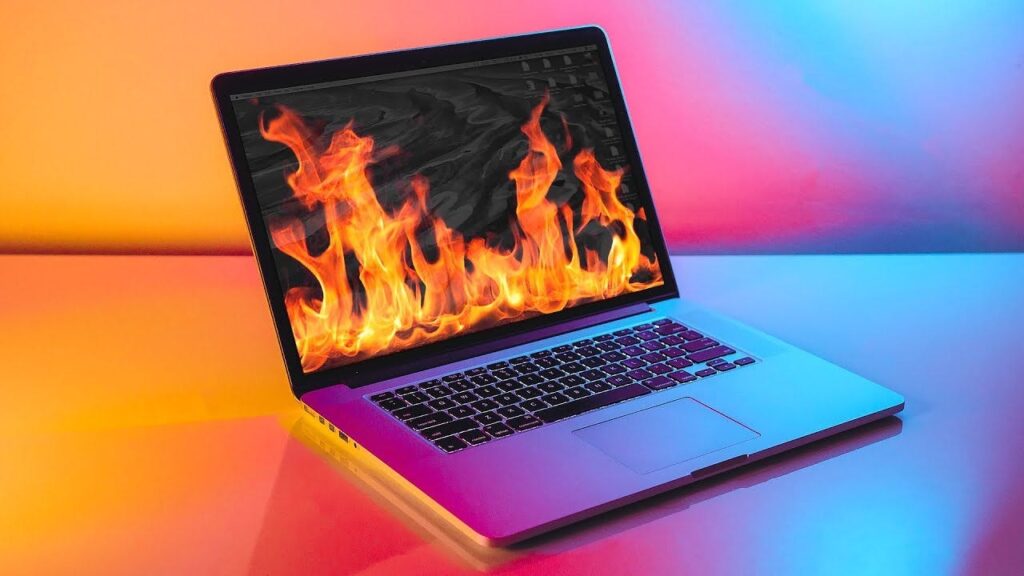
Many users assume memory is the reason their system lags. However, overheating is often the real cause when a laptop slow with 8gb starts fine and then becomes sluggish after a few minutes. In other words, the performance drops not because RAM is full, but because the processor protects itself from heat.
Why heat makes your laptop slow
Inside every laptop, the CPU automatically reduces speed when temperature rises. This safety mechanism is called thermal throttling. Therefore, instead of running at full power, the processor intentionally slows down to prevent damage.
As a result, you may notice:
- The laptop is fast right after turning on
- After 10–20 minutes it starts freezing
- Videos begin to stutter
- Typing delays appear
- The fan becomes loud
Meanwhile, Task Manager may show low RAM usage but high CPU usage. Consequently, upgrading RAM will not fix the problem.
Common causes of overheating
First, dust accumulates inside the cooling vents. Over time, airflow becomes blocked and heat cannot escape.
Secondly, using the laptop on soft surfaces like beds traps hot air underneath. Therefore temperatures rise quickly.
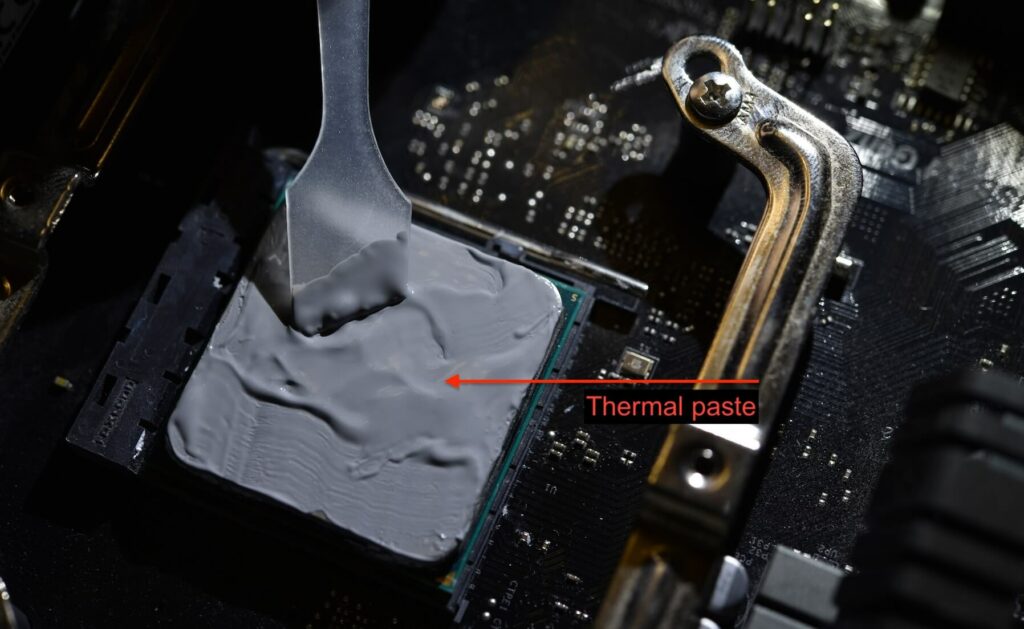
Additionally, dried thermal paste between the CPU and heatsink reduces heat transfer. In older laptops, this is extremely common.
Finally, heavy background apps can keep the processor active continuously, which further increases temperature.
H3: laptop slow with 8gb thermal throttling explained
When temperatures rise, the processor reduces speed automatically.
Therefore:
- Apps lag
- Videos stutter
- Typing delays appear
This often happens after 10–15 minutes of use.
Fix
First clean air vents
Next use a hard surface
Additionally use a cooling pad
Advanced: replace thermal paste
Afterwards performance stabilizes dramatically.
H2: laptop slow with 8gb Windows indexing and updates
Windows constantly indexes files so search becomes faster.
However during indexing CPU usage may reach 100%.
Therefore laptop becomes temporarily unusable.
Fix
Pause indexing:
Settings → Privacy & Security → Searching Windows
Also let updates finish before working.
H2: laptop slow with 8gb malware and bloatware
Brand-new laptops are not actually clean.
Instead they contain manufacturer utilities.
Additionally malware may install silently from downloads.
Consequently RAM fills quickly.

Fix
- Uninstall unwanted apps
- Run Windows Defender full scan
- Remove suspicious extensions
H2: laptop slow with 8gb RAM vs CPU misunderstanding
Many users upgrade RAM but notice zero improvement.
That’s because performance priority is:
- Storage (SSD)
- Processor
- Cooling
- RAM size
Therefore a fast CPU with 8GB beats a slow CPU with 16GB.
H2: laptop slow with 8gb when you actually need upgrade
Sometimes optimization is not enough.
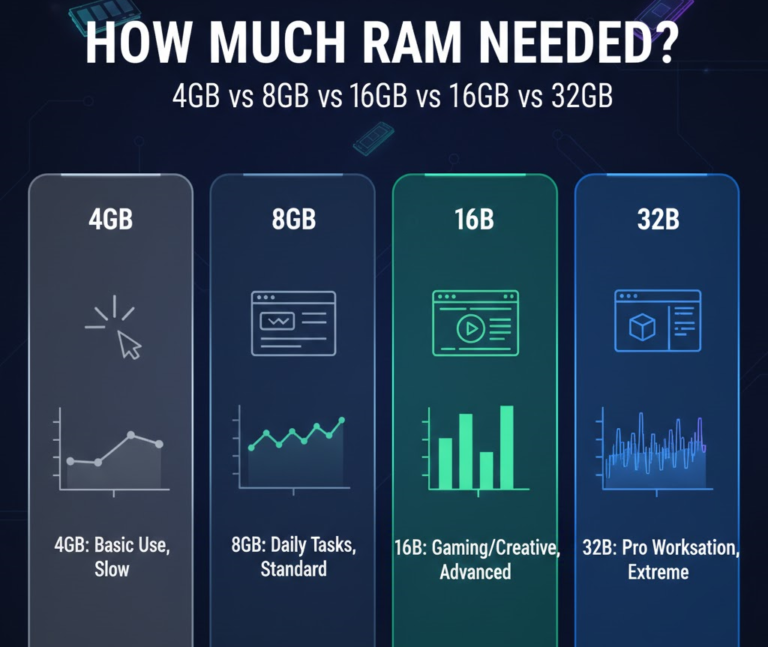
You truly need 16GB if you:
- edit videos
- run virtual machines
- program large projects
- open 40+ tabs
- play modern AAA games
Otherwise 8GB is perfectly adequate.
Quick 10-Minute Speed Checklist
First disable startup apps
Next enable memory saver
Then clean vents
After that uninstall bloatware
Finally check storage type
Consequently performance improves immediately.
Long-Term Performance Tips
Moreover keep at least 25% storage free
Additionally restart weekly
Likewise update drivers regularly
Furthermore avoid heavy antivirus suites
In contrast use built-in Windows Defender
Therefore system remains fast for years.
FAQs
Q1: Is 8GB RAM enough for a laptop in 2026?
Yes, 8GB RAM is sufficient for everyday tasks such as web browsing, office work, coding, and light photo editing. However, for heavy multitasking, video editing, or gaming, upgrading to 16GB may be necessary.
Q2: Why is my laptop slow with 8GB RAM even after restarting?
This usually happens because background apps, Windows updates, or malware are consuming CPU and disk resources. Additionally, overheating can reduce performance over time. Therefore, optimization steps like disabling startup apps, cleaning vents, and checking for malware are essential.
Q3: Will upgrading from HDD to SSD fix a laptop slow with 8GB RAM?
Yes! In most cases, storage type affects performance more than RAM. Replacing a hard disk drive (HDD) with a solid-state drive (SSD) dramatically improves boot times, app launches, and overall responsiveness.
Q4: Does Windows indexing and updates make laptops slow with 8GB RAM?
Indeed, Windows indexing constantly scans files for faster search results, and background updates run silently. Together, these processes can temporarily slow your laptop. Pausing indexing or completing updates can restore speed.
Q5: Can overheating really slow down a laptop with 8GB RAM?
Absolutely. Thermal throttling reduces CPU speed to prevent damage. As a result, your laptop may freeze, stutter, or become unresponsive even though RAM is adequate. Cleaning vents, using a cooling pad, or replacing thermal paste can fix this.
Q6: How can I check if malware or bloatware is slowing my 8GB RAM laptop?
Run a full system scan using Windows Defender or a trusted antivirus. Also, review installed programs and uninstall unnecessary software. Often, removing bloatware and malware instantly improves performance.
Further Thoughts
In conclusion, a laptop slow with 8GB RAM is rarely caused by the RAM itself. Instead, the main culprits are often slow storage, overheating, background processes, and malware. Therefore, before spending money on hardware upgrades, it’s wise to optimize your system using the methods outlined in this guide.
Moreover, regularly cleaning your laptop, monitoring startup apps, and keeping Windows updates managed ensures sustained performance. Additionally, adding a cooling pad or upgrading to an SSD can provide long-term speed improvements. For best cloud storage:
Finally, remember that while 8GB RAM is adequate for most users in 2026, hardware alone isn’t enough proper maintenance, optimization, and good usage habits are equally critical. Consequently, your laptop can feel like new again without unnecessary spend.
Conclusion
A laptop slow with 8GB RAM does not mean the memory is insufficient. Instead the problem usually comes from storage, startup programs, or overheating. After applying the fixes above, most laptops feel completely new again.
Only after optimization should you consider upgrading hardware. Otherwise you may waste money solving the wrong problem.

3 Comments