
How to reset router safely
Introduction to How to reset router safely
Resetting your router can resolve many network issues, such as slow internet, connectivity drops, or configuration errors. Indeed, a simple reset often restores your WiFi to its optimal performance without needing technical expertise. However, performing a reset incorrectly can lead to lost settings, disrupted connections, or even security issues.
Fortunately, understanding the proper steps and precautions ensures that you reset your router safely and efficiently. Moreover, knowing when to do a soft reset versus a full factory reset helps protect your personalized settings, such as WiFi name, password, and parental controls. As a result, following a clear, step-by-step approach allows you to fix network problems without unnecessary frustration.
In this guide, we will walk you through safe router reset techniques, explain the difference between soft and hard resets, and provide tips to restore your network quickly while maintaining your security and configurations.
Why Resetting Your Router Matters
Routers occasionally experience glitches, leading to slow internet, intermittent drops, or unresponsive devices. Resetting your router can:
- Restore optimal internet speeds
- Resolve connectivity problems
- Clear corrupted settings
- Improve Wi-Fi stability
However, improper resets may result in lost configurations, requiring a complete setup from scratch.
Types of Router Reset
Soft Reset
A soft reset involves restarting the router without erasing any customized settings. This is useful when troubleshooting minor connectivity issues.
Steps:
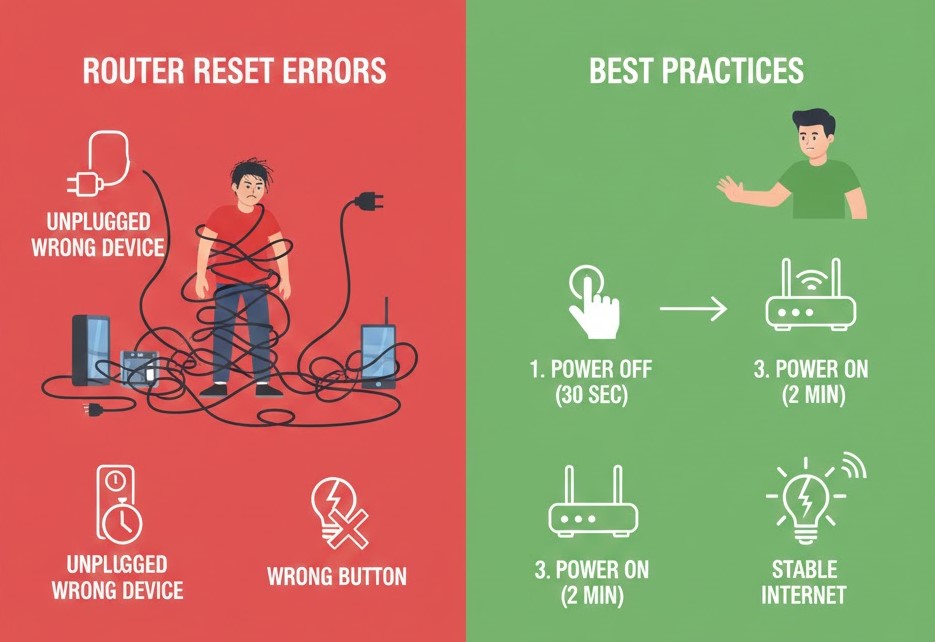
- Power off the router.
- Wait 10-30 seconds.
- Power it back on.

Hard Reset
A hard reset restores the router to factory settings. Use this when persistent issues occur or you need to remove old configurations.
Steps:
- Locate the reset button on the router.
- Press and hold for 10-30 seconds.
- Release the button and wait for the router to reboot.
Warning: Hard reset will erase all settings, including Wi-Fi name, password, and custom configurations.
How To Reset Router Safely
Backup Your Settings
Before performing a hard reset, backup your router’s settings via the admin interface. Most modern routers allow you to export configurations.
Steps:
- Access your router’s admin panel (usually via browser).
- Navigate to Backup or Administration settings.
- Save the backup file to your computer.
Note Down Important Information
Keep track of:
- Wi-Fi SSID (network name)
- Wi-Fi password
- ISP login credentials
This ensures you can quickly restore internet access after the reset.
Use the Admin Panel When Possible
Instead of physical reset buttons, some routers allow resets through the web interface or app, reducing risk of data loss.
Wait for Complete Reboot
After reset, wait 2-5 minutes for the router to fully restart before reconnecting devices.
Common Mistakes When Resetting Routers
- Resetting Without Backup: Leads to loss of Wi-Fi credentials and configurations.
- Interrupting the Reset: Power interruptions during reset may corrupt firmware.
- Ignoring Firmware Updates: Outdated firmware may cause repeated issues.
- Using Default Settings Indefinitely: Default passwords are insecure and may expose your network.
Optimizing Router After Reset
Change Default Passwords
Immediately change the default admin and Wi-Fi passwords for security.
Update Firmware
Keep your router firmware up-to-date to enhance performance and security.
Reconfigure Wi-Fi Settings
Restore your SSID, password, and preferred Wi-Fi channels.
Place Router Strategically
Ensure the router is placed in a central location to optimize coverage.
Learn more how to reset wifi: FCC Wi-Fi Tips
Router Reset Tips for Specific Brands
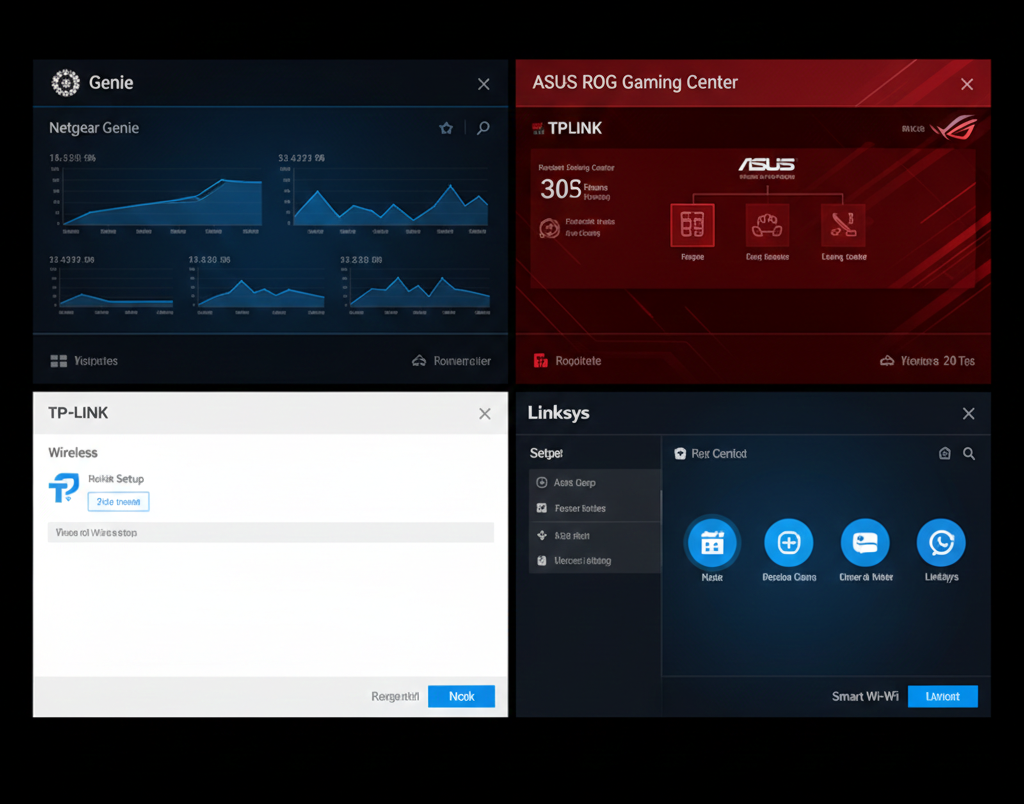
Netgear
- Use the reset button or admin panel.
- Backup settings via Netgear Genie.
TP-Link
- Access TP-Link web interface to reset safely.
- Backup before factory reset.
Asus
- Asus routers support both web and physical resets.
- Ensure firmware is current.
Linksys
- Linksys Smart Wi-Fi app allows resets without losing internet.
- Save configurations before factory reset.
FAQs: How to Reset Router Safely
Q1: What is the difference between a soft reset and a factory reset?
A: Indeed, a soft reset simply restarts your router without changing any settings. Meanwhile, a factory reset restores the router to its original settings, erasing custom WiFi names, passwords, and configurations. Therefore, it’s important to choose the correct reset method depending on the problem you are trying to solve.
Q2: How often should I reset my router?
A: Generally, routine soft resets can help maintain performance, especially if you notice temporary slowdowns or connectivity issues. However, factory resets should only be used when persistent issues remain or when you want to clear old configurations. Consequently, unnecessary factory resets can waste time and require you to reconfigure your network.
Q3: Will resetting my router affect my internet provider settings?
A: Not usually. Your ISP’s settings are often stored in the router’s firmware. However, after a factory reset, you may need to re-enter login credentials or reconnect to your ISP if specific settings were customized. Thus, keeping a record of these details before resetting is highly recommended.
Q4: Can resetting a router improve WiFi speed?
A: Absolutely. A soft reset clears temporary glitches, while a factory reset can resolve configuration errors that reduce performance. Moreover, combining a reset with optimal router placement and updated firmware can significantly improve your network speed and reliability.
Further Thoughts
Resetting your router safely is more than just pressing a button in fact, it’s about understanding the type of reset you need and the potential impact on your network settings. As smart homes and multiple devices become more common, routers can experience software glitches, slow performance, or connectivity drops. Moreover, performing a reset incorrectly may cause unnecessary downtime or lost configurations, which is why preparation is key.
Consequently, before resetting, it’s advisable to document WiFi names, passwords, and custom settings. Furthermore, updating the router firmware and checking for known issues can prevent repeated problems. Ultimately, mastering safe router resets ensures you maintain both network performance and security, while avoiding frustration and wasted time.
Conclusion
In conclusion, knowing how to reset your router safely is essential for maintaining a reliable home network. Indeed, soft resets resolve temporary glitches, while factory resets solve persistent or configuration-related issues. Moreover, understanding when and how to reset prevents loss of critical settings and ensures your WiFi continues to perform optimally.
Therefore, preparing by recording network information, updating firmware, and following step-by-step instructions is crucial. Consequently, these precautions allow you to restore your network safely and efficiently. Ultimately, safe router resets are a simple yet powerful way to improve connectivity, speed, and security, keeping your home network running smoothly for all devices.