
How to Fix Slow WiFi at Home and Boost Internet Speed Instantly
Introduction on how to fix slow wifi at home
how to fix slow wifi at home can be frustrating, especially when you’re trying to stream videos, join a video call, or complete work online. Indeed, a lagging connection can disrupt productivity and reduce overall enjoyment of your internet services. Moreover, slow speeds are often caused by common issues such as router placement, network congestion, outdated hardware, or improper settings.
Fortunately, there are practical solutions that can instantly boost your internet speed without the need for expensive upgrades. By following simple troubleshooting steps, optimizing your network setup, and leveraging modern tools, you can enjoy a faster, more reliable WiFi connection. In this guide, we will walk you through effective strategies to fix slow WiFi at home and maximize your internet performance immediately.
Why WiFi Is Slow at Home
H2: Common Causes of Slow WiFi at Home
Your WiFi may be slow because of multiple factors:
- Router location and placement
- Interference from other devices
- Too many connected devices
- Outdated router or firmware
- ISP bandwidth limitations
- Incorrect WiFi settings (channel, frequency)
- Old devices with slow WiFi standards
For ISP issues, visit Speedtest by Ookla.
How to Fix Slow WiFi at Home
H2: Step 1: Restart Your Router
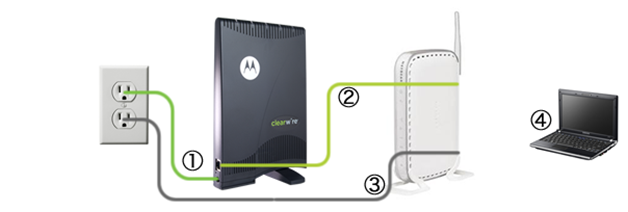
One of the simplest ways to fix slow WiFi at home is to restart your router. Rebooting clears temporary glitches, refreshes IP addresses, and restores network performance.
How to do it correctly:
- Turn off your WiFi devices
- Unplug the router from power
- Wait 30–60 seconds
- Plug it back in and reconnect

H2: Step 2: Optimize Router Placement
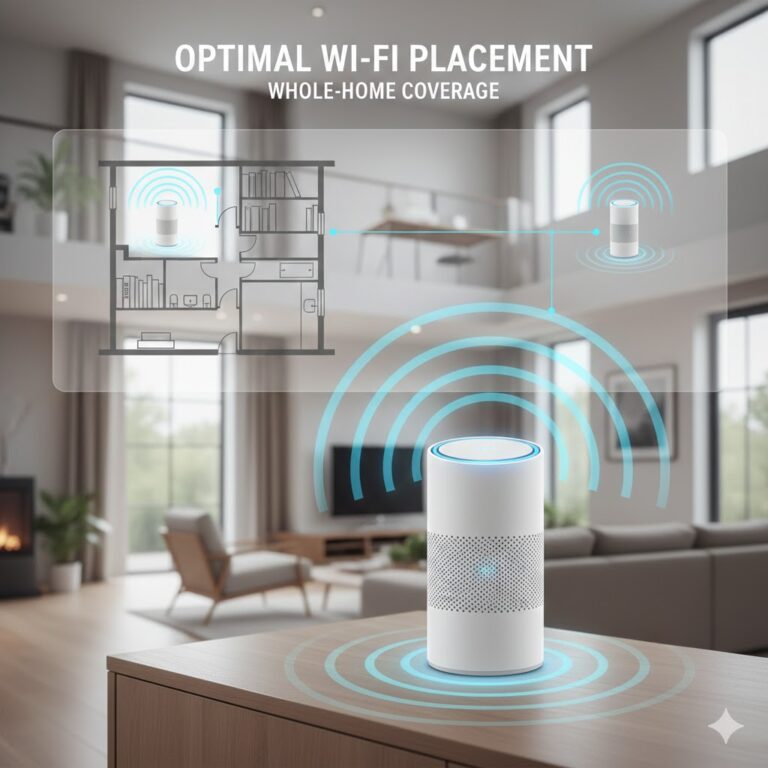
Poor router placement is a leading cause of slow WiFi. Avoid corners, walls, and metal objects that block signals.
Tips:
- Place the router in a central location
- Elevate it off the floor
- Keep away from microwaves, cordless phones, and thick walls
H3: How Router Placement Improves WiFi
A central, elevated router improves signal distribution, reducing dead spots and improving speed on all devices.
H2: Step 3: Reduce Interference from Other Devices
WiFi operates on 2.4 GHz and 5 GHz bands. Interference can slow down speeds.
- Move routers away from baby monitors, Bluetooth speakers, and microwaves
- Use 5 GHz for devices near the router
- Switch WiFi channel to avoid overlap from neighbors

H2: Step 4: Limit Connected Devices
Too many devices connected simultaneously can slow your WiFi.
H3: How Many Devices Are Too Many?
- Basic home network: 5–10 devices
- Smart homes: 20+ devices may require mesh WiFi
- Disconnect devices not in use
H2: Step 5: Update Router Firmware
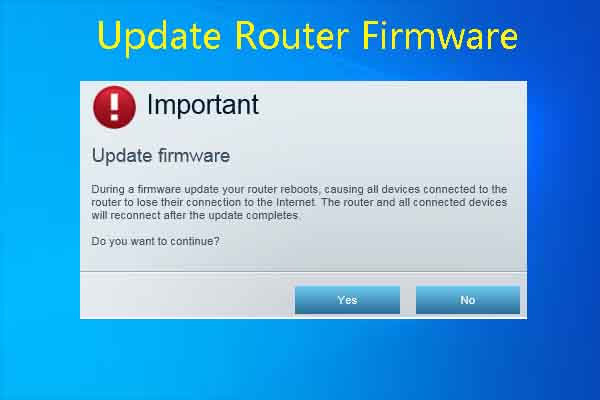
Outdated firmware may limit performance and security.
How to update:
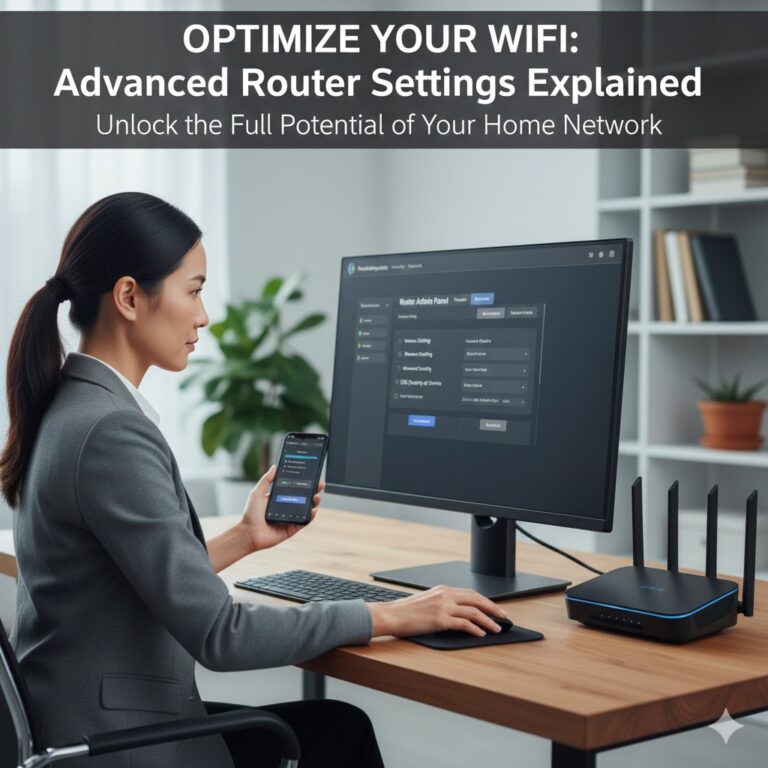
- Login to router admin panel (usually 192.168.1.1 or 192.168.0.1)
- Check firmware version
- Update to latest version
- Restart router
H2: Step 6: Change DNS Settings
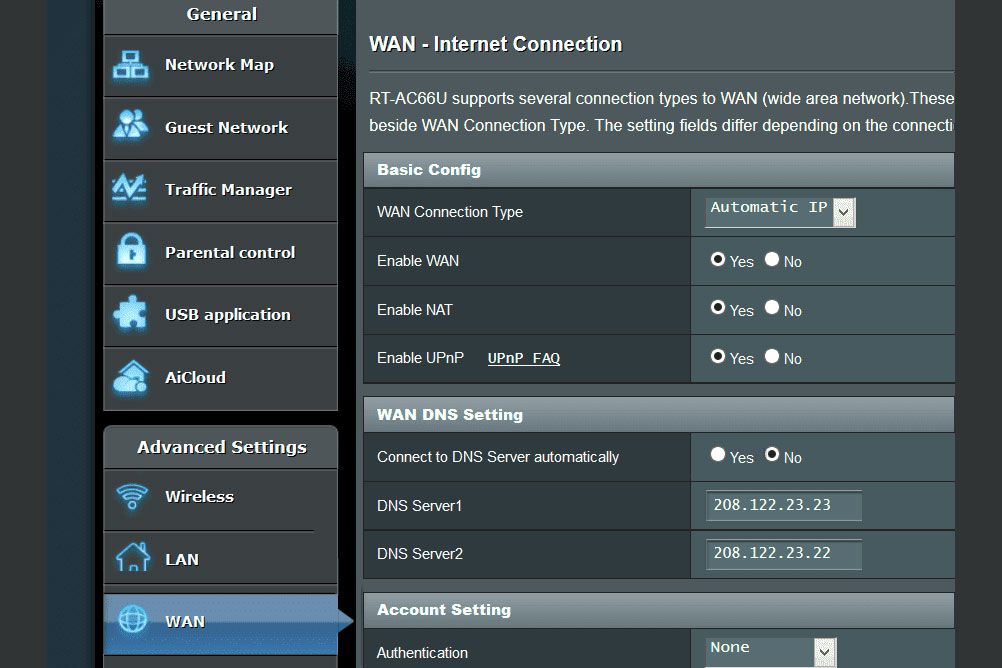
Switching DNS can improve browsing speed. Use Google DNS or Cloudflare:
- Google DNS: 8.8.8.8 / 8.8.4.4
- Cloudflare DNS: 1.1.1.1 / 1.0.0.1
click the: Google DNS Setup Guide
H2: Step 7: Upgrade Your Router
Old routers may not support high-speed internet. Look for:
- WiFi 5 (802.11ac) or WiFi 6 (802.11ax)
- Dual-band or tri-band support
- MU-MIMO technology for multiple devices
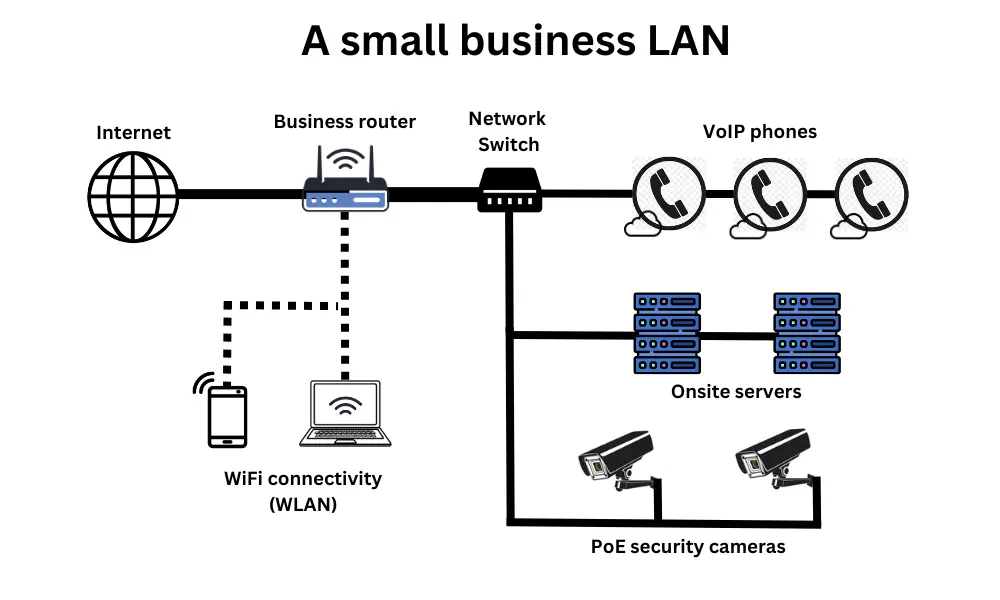
H2: Step 8: Use Wired Connections for Critical Devices
Ethernet connections bypass WiFi interference. Ideal for:
- Gaming consoles
- Streaming devices
- Home office computers
H2: Step 9: Perform Network Speed Test
Check if your ISP delivers promised speeds. Use:
- check speed: Speedtest by Ookla:
- Fast.com
Compare results to your plan. If slower → contact ISP.
H2: Step 10 — Reduce Background Usage
Apps updating in the background can slow WiFi.
- Pause cloud backups during peak hours
- Stop auto-updates on devices
- Limit streaming on multiple devices simultaneously
H2: Step 11: Consider WiFi Extenders or Mesh Systems
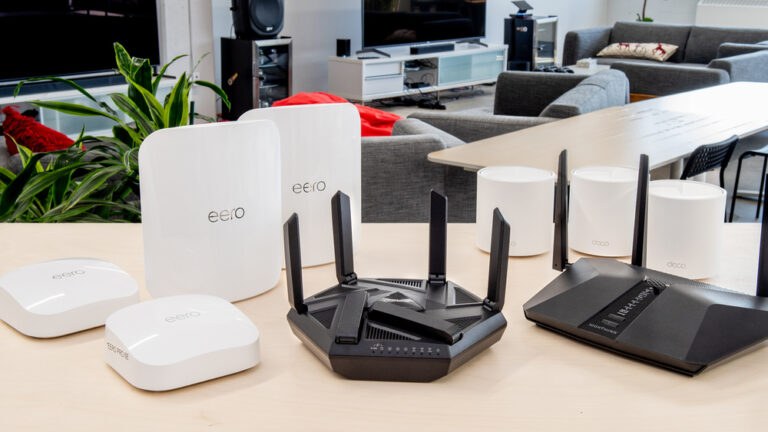
For large homes, a single router may not cover all areas.
- WiFi Extenders: Boost signal in dead zones
- Mesh WiFi: Seamless coverage across rooms
FAQs: How to Fix Slow WiFi at Home
Q1: Why is my WiFi slow even though my internet plan is fast?
A: Indeed, your internet plan’s speed is only one factor. Moreover, WiFi performance can be affected by router placement, interference from other devices, outdated firmware, or network congestion. Therefore, optimizing your home network setup is often more effective than upgrading your plan immediately.
Q2: Can restarting my router permanently fix slow WiFi?
A: While restarting your router can temporarily improve performance, it does not address underlying issues such as channel interference, bandwidth-heavy apps, or hardware limitations. Consequently, a combination of troubleshooting, optimization, and sometimes hardware upgrades is the most reliable way to boost WiFi speed permanently.
Q3: How do I prevent WiFi from slowing down during peak hours?
A: Firstly, check for bandwidth-hogging applications and devices. Additionally, prioritize important devices using Quality of Service (QoS) settings. Furthermore, upgrading to dual-band or tri-band routers can help distribute traffic efficiently, ensuring smoother connectivity even during peak hours.
Q4: Are there affordable ways to instantly boost WiFi speed at home?
A: Absolutely. Simple steps like relocating your router to a central location, changing your WiFi channel, updating firmware, and using modern DNS servers can significantly improve speed without additional costs. Ultimately, consistent network maintenance ensures long-term performance.
Further Thoughts
Slow WiFi is more than an inconvenience; it affects productivity, entertainment, and even communication. As more devices connect to your home network, performance issues can multiply if not addressed proactively. Moreover, understanding the factors that influence WiFi speed including distance from the router, interference, device capabilities, and network settings empowers users to take effective action.
Consequently, taking a holistic approach to troubleshooting is essential. This involves checking hardware, optimizing settings, managing connected devices, and even using modern network tools to monitor performance. Furthermore, being proactive in maintaining your network prevents recurring slowdowns, reduces frustration, and enhances the overall home internet experience.
Ultimately, boosting WiFi speed is not just about convenience; it is about creating a stable, efficient, and reliable digital environment where work, learning, and entertainment can thrive seamlessly.
Conclusion
In conclusion, fixing slow WiFi at home and boosting internet speed instantly requires both understanding and action. Indeed, simple measures like optimizing router placement, updating firmware, and reducing interference can make a dramatic difference. Moreover, adopting strategic network management including bandwidth prioritization, device monitoring, and regular maintenance ensures consistent high-speed performance.
Therefore, homeowners and remote workers who take the time to troubleshoot and optimize their WiFi setup enjoy not only faster internet but also greater productivity, improved streaming experiences, and reduced frustration. Ultimately, investing in proper WiFi care is a small effort that delivers long-term benefits, making every connection more reliable, secure, and enjoyable.


One Comment