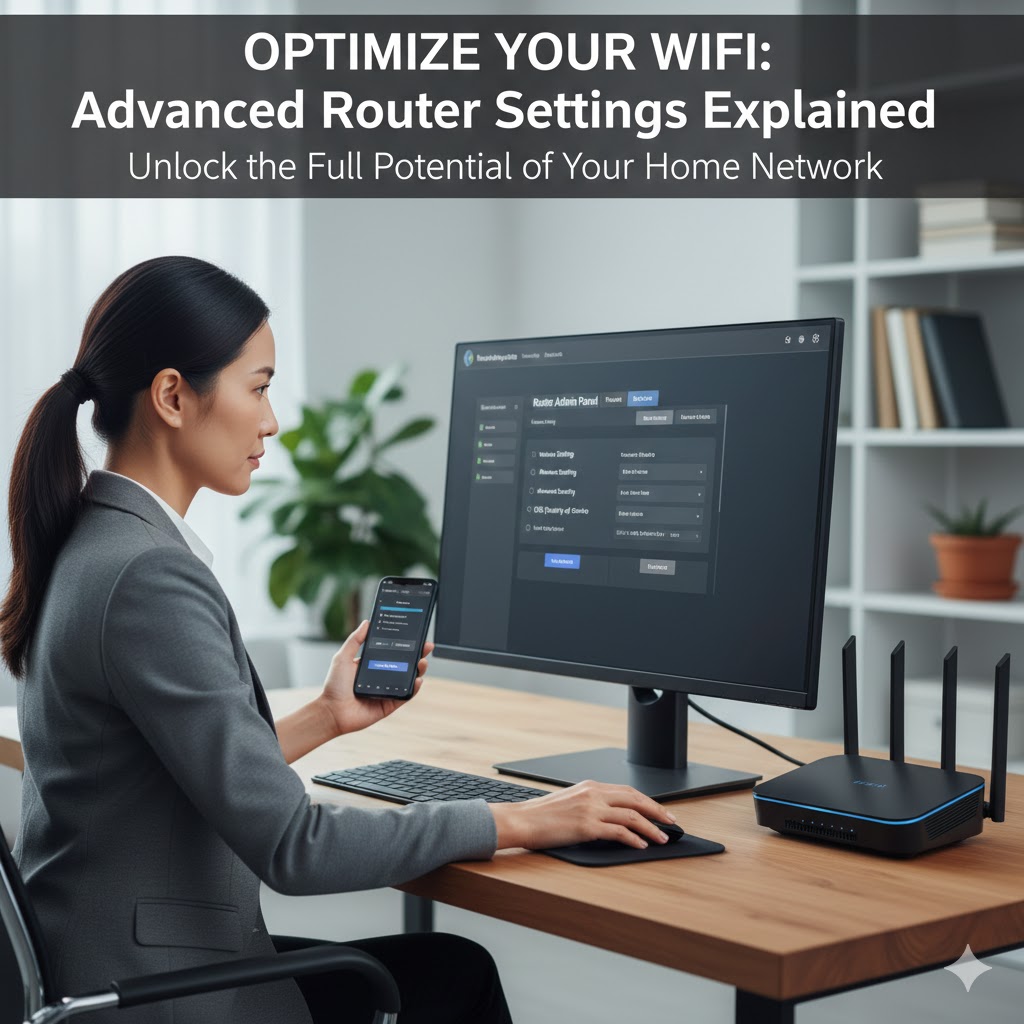
How to Configure Router: Step-by-Step Guide
How to Configure Router: Step-by-Step Guide for Beginners
How to Configure Router: Step-by-Step Guide is essential knowledge for anyone setting up a new internet connection or optimizing an existing home network. Indeed, proper router configuration directly affects your WiFi speed, security, and overall network stability. However, many users skip important setup steps, which can lead to slow performance, weak security, or connectivity issues.
Fortunately, configuring a router is not as complicated as it sounds. In fact, by following a clear and structured approach, you can customize your network settings, secure your WiFi, and ensure all devices connect smoothly. Moreover, taking time to configure your router correctly helps prevent unauthorized access and improves long-term performance.
In this step-by-step guide, you will learn how to access your router settings, change default credentials, set up a secure WiFi network, and optimize performance for maximum speed and reliability. Ultimately, proper router configuration ensures a safer, faster, and more efficient internet experience for your home or office
Why Configuring Your Router Properly Matters
Proper router configuration ensures faster WiFi, stable connections, and secure networks. Moreover, misconfigured routers can expose your home network to hackers or allow neighbors to access your bandwidth.
Key reasons to configure your router correctly:
- Performance: Adjust settings improves speed.
- Coverage: Proper placement ensures signal reaches every room.
- Security: Changing default passwords and updating firmware keeps intruders out.
In fact, these small adjustments often prevent most connection problems.
Step 1: Access Your Router Settings
First, you need to log in to your router. This step is essential because without accessing the settings, you cannot configure your network.
How to Find Your Router IP Address
Typically, your router’s IP address is printed on the device. Common ones include:
192.168.0.1192.168.1.1
Alternatively, check your device settings for Default Gateway.
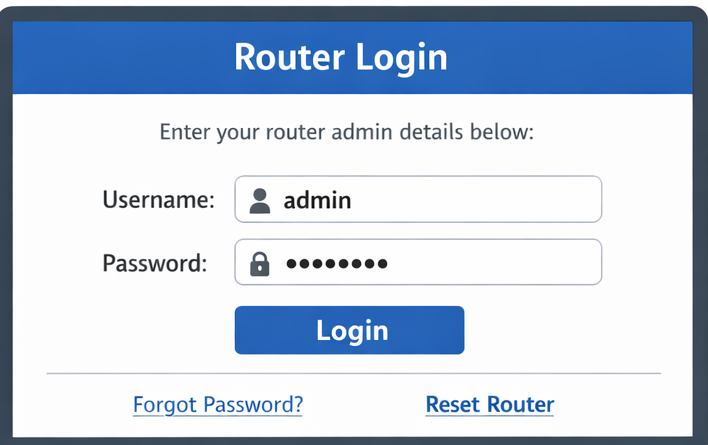
Login Credentials
Most routers come with a default username and password, usually:
- Username:
admin - Password:
adminor printed on your router
Important: Always change the default login to a strong password to prevent unauthorized access.
Step 2: Change Default Password and SSID
Next, update your network’s name (SSID) and password.
Why This Step Matters
Hackers often scan for default router credentials. Therefore, changing them protects your data.
Tips for SSID and Password
- Choose a unique network name
- Avoid personal info in SSID
- Use a strong password with letters, numbers, and symbols
In addition, this makes your WiFi easier to recognize among neighbor networks.
Step 3: Update Router Firmware
Therefore, Keeping your firmware updated is crucial. Manufacturers release updates that improve performance and security.
How to Update
- First, Login to router dashboard
- Next, Navigate to System/Firmware Update
- Finally, Follow prompts to install
Also, regular updates can fix bugs that slow down your network.
Step 4: Optimize WiFi Settings
WiFi settings affect signal range and speed. Configuring bands and channels properly ensures better performance.
Choose the Right Frequency Band
| Band | Speed | Range | Best Use |
|---|---|---|---|
| 2.4GHz | Slower | Longer | Far rooms / older devices |
| 5GHz | Faster | Shorter | Close devices / high-speed |
Therefore, assign devices to the appropriate band to improve connection.
Change WiFi Channel
Overlapping channels cause interference. Go to Wireless Settings → Channel, and manually select a channel with less congestion.
In addition, testing 1, 6, or 11 often gives the best results in home networks.
Step 5: Enable Guest Network (Optional)
Creating a guest network keeps your main WiFi secure. Visitors can connect without accessing your primary devices.
Steps:
- First, Navigate to Guest Network settings
- Next, Enable network with a unique password
- Then, Limit access if needed
Finally, this protects sensitive files and devices from external connections.
Step 6: Adjust Advanced Settings
Advanced users can configure additional options for stability:
- DHCP Settings: Assign specific IPs to devices
- QoS (Quality of Service): Prioritize bandwidth for gaming or streaming
- Port Forwarding: Enable applications like security cameras or gaming servers
However, beginners can skip this step if they are satisfied with basic performance.
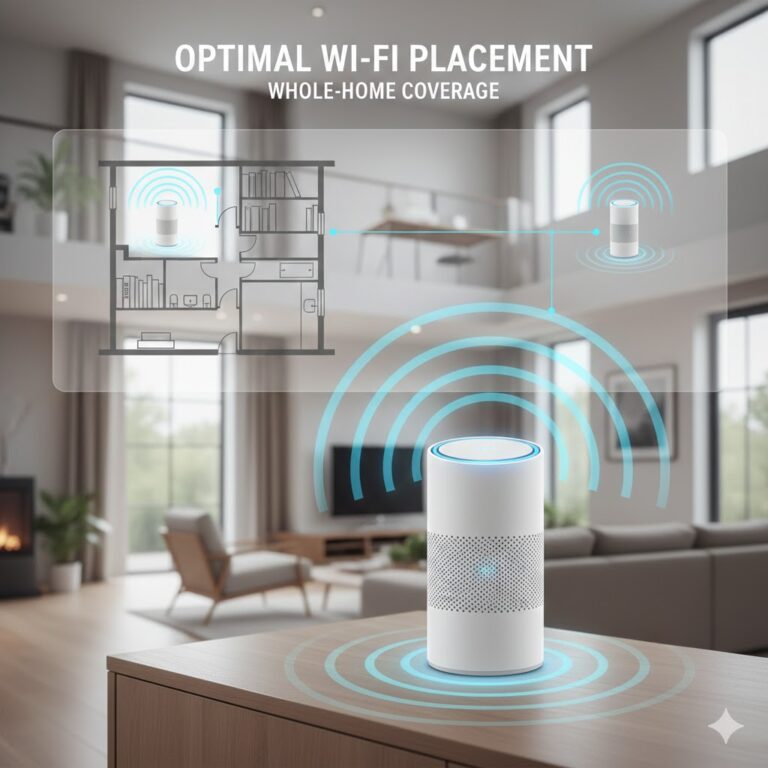
Step 7: Position Your Router Correctly
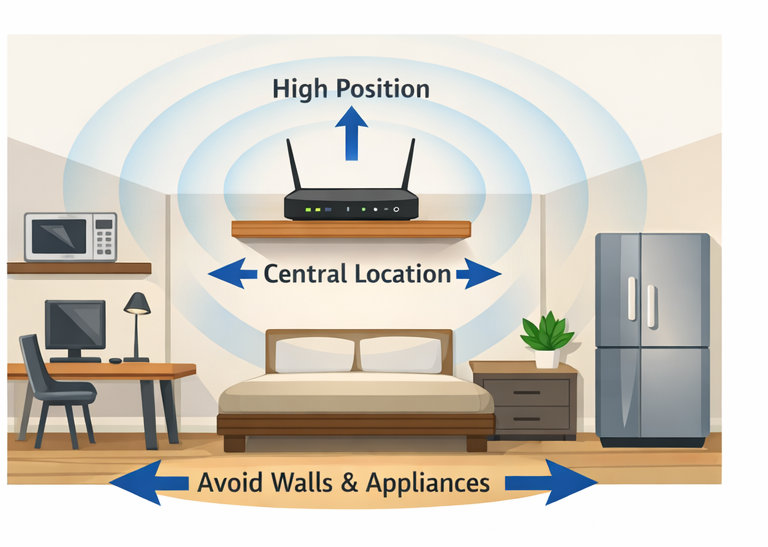
Where your router sits affects coverage dramatically.
Best practices:
- Place in a central location
- Keep elevated on a shelf
- Avoid corners, metal cabinets, or appliances
As a result, WiFi reaches more rooms without weakening.
Step 8: Reduce Interference
Electronics like microwaves, cordless phones, and baby monitors can block WiFi signals.
Therefore, place your router away from such devices and high-interference areas.
Step 9 – Test and Troubleshoot
After configuration, check your WiFi:
- Use a smartphone or laptop to measure speed in different rooms
- Ensure all devices connect without repeated disconnections
Common issues and fixes:
- No Internet: Reboot router
- Forgot password: Reset router
- Devices not connecting: Check SSID and band
In addition, tools like speedtest.net help verify improvements.
If you want to know whre to place your router in house, check our guide on router placement in house.
For Reference
For manufacturer-specific instructions, see:
Google Support
FAQs: How to Configure Router: Step-by-Step Guide
Q1: Why is router configuration important?
A: Indeed, proper router configuration ensures your network is secure, fast, and stable. Without correct setup, you may experience slow speeds, weak signals, or security vulnerabilities. Therefore, taking time to configure your router correctly helps protect your data and improve overall performance.
Q2: What should I configure first on a new router?
A: Firstly, change the default admin username and password to prevent unauthorized access. Secondly, customize your WiFi network name (SSID) and create a strong password. Moreover, enabling WPA3 or at least WPA2 encryption enhances network security. Consequently, these initial steps create a safe foundation for your home or office network.
Q3: How can I optimize router settings for better speed?
A: Generally, selecting the correct WiFi band (2.4GHz or 5GHz), updating firmware, and choosing a less congested channel can improve performance. Additionally, placing the router in a central, elevated position reduces interference and improves coverage. Thus, small configuration adjustments can significantly boost speed and reliability.
Q4: Do I need technical skills to configure a router?
A: Not necessarily. Most modern routers provide user-friendly dashboards with guided setup instructions. However, understanding basic networking terms can help you make smarter decisions during configuration. Ultimately, following a structured step-by-step guide simplifies the entire process.
Further Thoughts
Configuring a router is not just a one-time task in fact, it is an essential part of maintaining a secure and high-performing network. As more devices connect to home WiFi networks, proper configuration becomes increasingly important to prevent congestion and unauthorized access. Moreover, features such as parental controls, guest networks, and Quality of Service (QoS) settings allow you to prioritize traffic and manage usage effectively.
Consequently, reviewing your router settings periodically ensures that your network adapts to changing needs. Furthermore, keeping firmware updated protects against security vulnerabilities and improves system stability. Additionally, understanding your router’s advanced features empowers you to optimize performance beyond the default setup.
Ultimately, mastering router configuration gives you full control over your internet experience. Instead of relying solely on default settings, you can customize performance, strengthen security, and ensure consistent connectivity for all devices in your home or workplace.
Conclusion
In conclusion, learning How to Configure Router: Step-by-Step Guide equips you with the knowledge to build a secure and efficient network. Indeed, proper configuration enhances speed, strengthens security, and reduces connectivity issues. Moreover, by adjusting key settings such as WiFi encryption, channel selection, and firmware updates, you ensure long-term network stability.
Therefore, investing time in router configuration is not optional it is essential for optimal performance. Consequently, following a structured approach helps avoid common mistakes and maximizes the value of your internet service. Ultimately, a well configured router creates a faster, safer, and more reliable network environment for work, entertainment, and everyday connectivity.