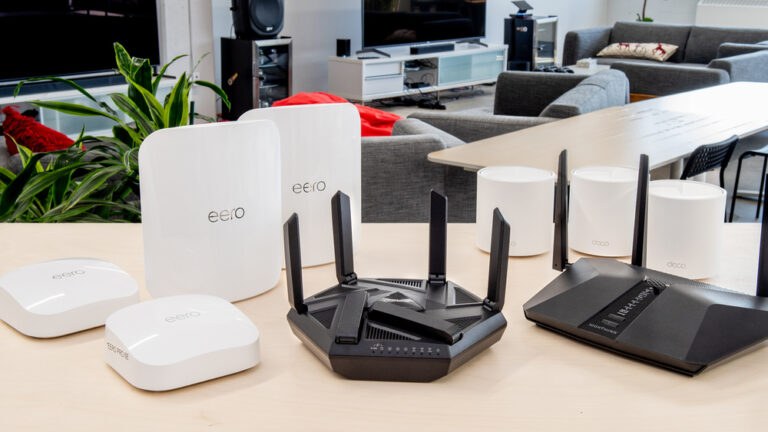

Extend WiFi Range Free Without Buying an Extender
How to Extend WiFi Range Free Without Buying an Extender
Slow internet in one room but perfect speed next to the router?
You don’t need to spend money yet. extend wifi range free.
In most homes, the problem isn’t weak internet it’s poor signal distribution. Walls, furniture, interference, and bad router placement cause dead zones. The good news: you can extend wifi range free using settings, positioning tricks, and simple DIY methods.
This guide shows practical fixes that actually work in real homes.
Understanding Why WiFi Signal Becomes Weak
Before boosting your wireless coverage, it helps to know what blocks it.
Common Causes of Poor Wireless Coverage
- Concrete walls
- Metal doors
- Kitchen appliances
- Mirrors and aquariums
- Routers placed in corners
- Neighbor networks interference
WiFi spreads like light obstacles weaken it.
If your router is in one far corner of the house, half your signal is literally going outside the building.
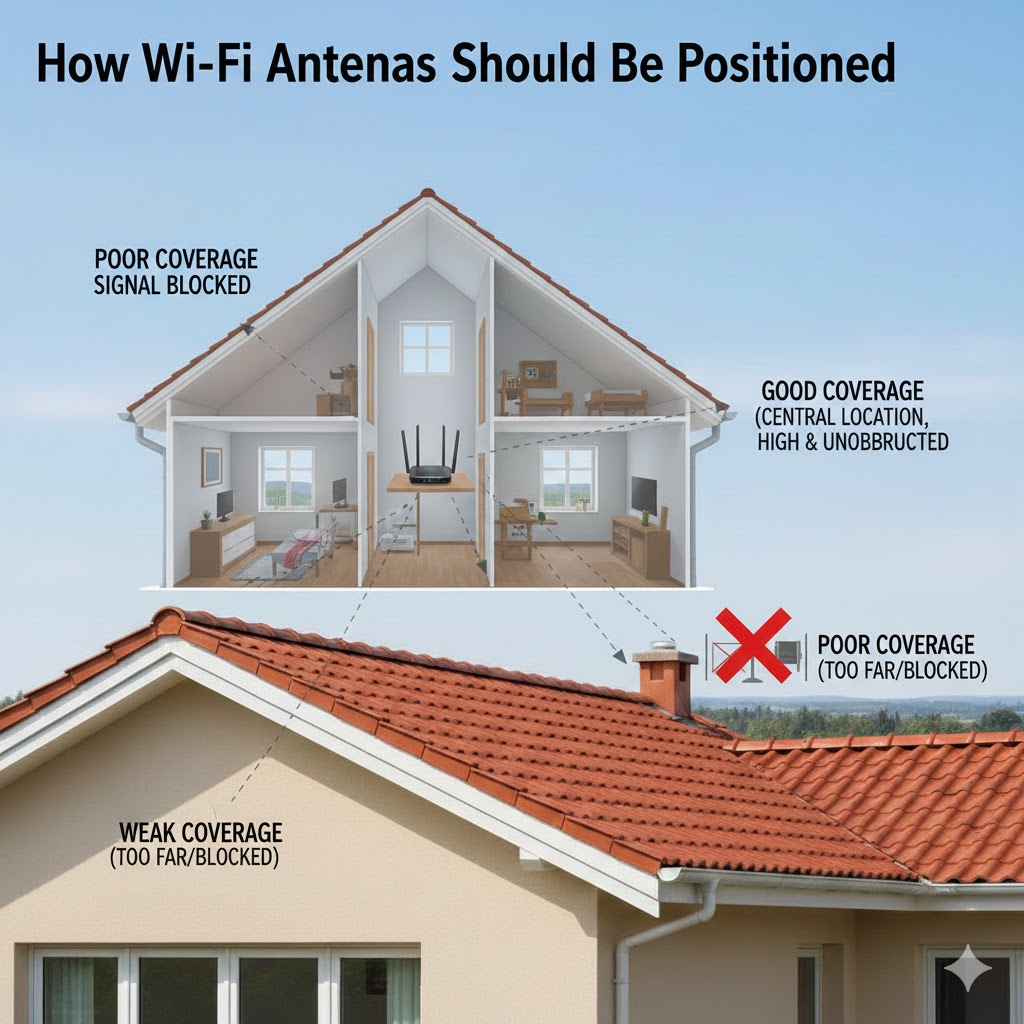
Repositioning Router for Better Signal (Most Effective Fix)
This alone fixes about 60% of weak signal problems.
Best Router Placement Rules
- First, Place it in the center of the house
- Keep it elevated (table or shelf)
- Avoid floor placement
- Keep away from TV and microwave
- Finally, Avoid closed cabinets
Bad placement wasted signal.
Ideal Height Position
WiFi travels slightly downward.
So placing the router high lets it spread across rooms.
Good: bookshelf height
Bad: under the desk
Change Antenna Direction to Boost Coverage
Most people never adjust antennas huge mistake.
How Antennas Should Be Positioned
- One vertical
- One horizontal
Why?
Devices in different positions receive signal differently.
Phones and laptops have internal antennas in different orientations.
This simple adjustment can noticeably improve wireless reach across floors.
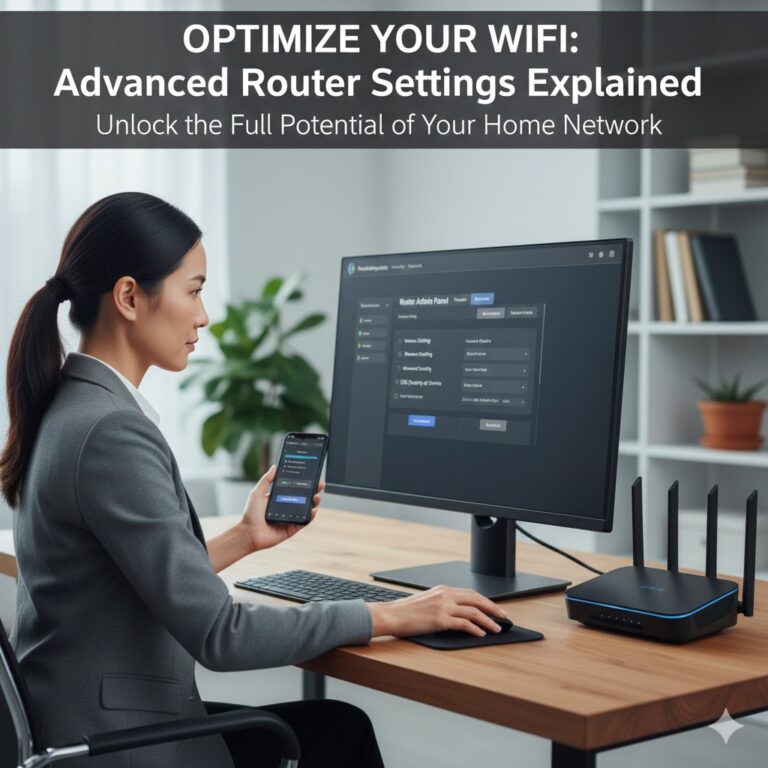
Adjust Router Settings to Improve Range
You don’t need new hardware your router already has unused power.
Login to router settings:
192.168.1.1
or
192.168.0.1
(Printed under router)
Change WiFi Channel to Reduce Interference
Neighbors share the same channels.
Congestion weakens coverage.
Go to:
Wireless Settings → Channel
Choose manually:
- 1
- 6
- 11
Try each and test speed.
Switch Between 2.4GHz and 5GHz Properly
This is critical.
| Band | Speed | Range |
|---|---|---|
| 2.4GHz | slower | longer |
| 5GHz | faster | shorter |
Use:
- 2.4GHz for far rooms
- 5GHz near router
Rename them differently so you can choose manually.
DIY Reflector Trick (Works Surprisingly Well)
You can direct signal instead of wasting it behind the router.
Make a Simple Signal Reflector
You need:
- Aluminum foil
- Cardboard
Steps:
- Curve the foil
- Place behind router
- Face open side toward weak room
It reflects radio waves forward.
This can improve signal strength by 20–40% in one direction.
Use an Old Router as Repeater (No Extender Needed)
You already own a free extender your old router.
Convert Router Into Access Point
- Reset old router
- Connect using LAN cable to main router
- Disable DHCP
- Set same WiFi name + password
- Different channel
Now devices roam automatically.
Move Interference Devices Away
Many electronics broadcast radio noise.
Biggest WiFi Killers
- Microwave ovens
- Bluetooth speakers
- Baby monitors
- Wireless CCTV
- Cordless phones
Keep router at least 2 meters away.
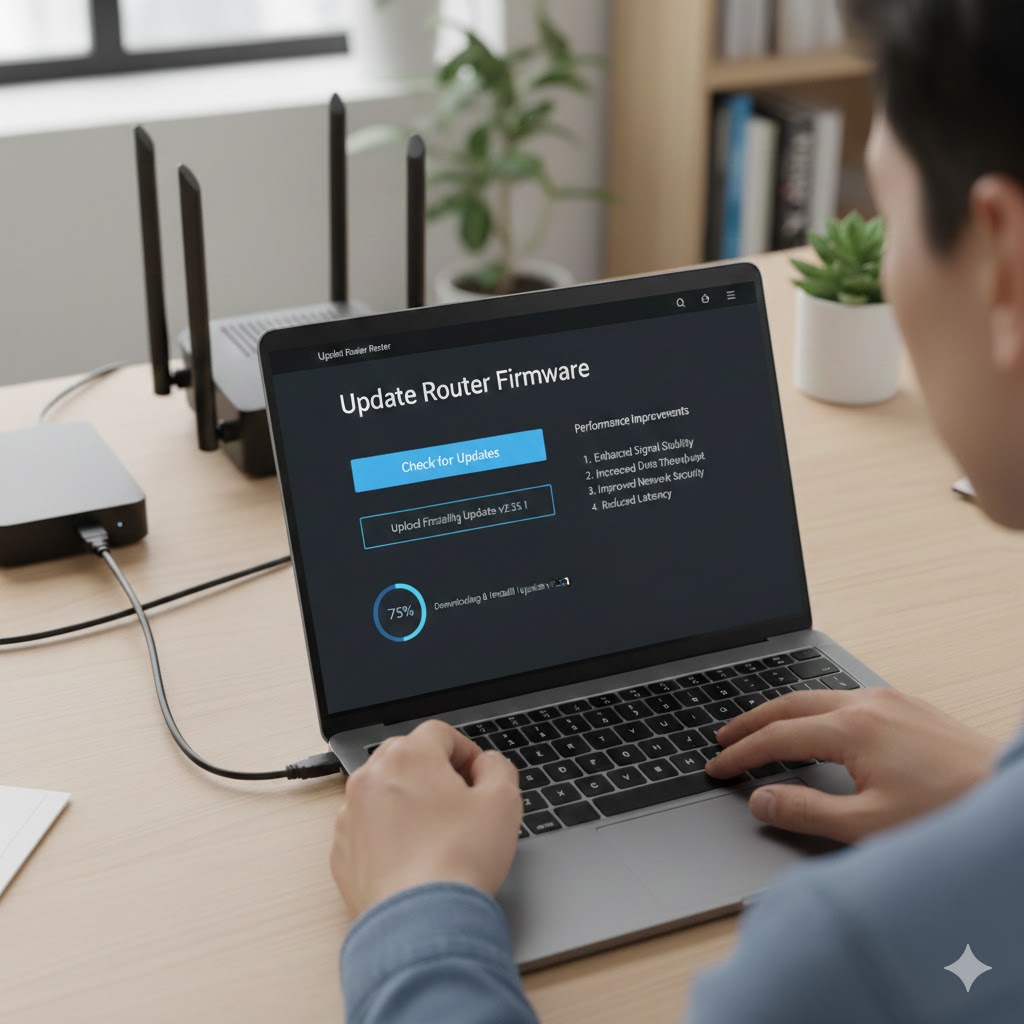
Update Router Firmware for Stronger Performance
Manufacturers quietly improve signal algorithms.
Login → System → Firmware Update
You’ll often get:
- stronger stability
- better device handling
- improved coverage
Many people skip this and blame the ISP.
Change Bandwidth Width (Advanced Optimization)
Inside wireless settings:
Set channel width:
| Setting | Use |
|---|---|
| 20 MHz | stable long range |
| 40 MHz | balanced |
| 80 MHz | speed only short range |
For range → choose 20 MHz
It sacrifices speed slightly but increases coverage stability.
Elevate Devices Instead of Router
Sometimes the problem is not the router it’s the client.
Laptops on beds or floors receive weak signal because:
- fabric absorbs radio
- body blocks antenna
Place devices on tables when using far rooms.
You’ll instantly see fewer signal drops.
If your connection still behaves strangely after improving signal, check router issues here:
how to reset router correctly
For detailed channel overlap explanation see:
google support:
Further Optimization Tips
Turn Off Unused Devices
Too many connected gadgets reduce coverage strength because routers split airtime.
Reduce Walls Between Router and Room
Even moving router 1 meter sideways can bypass a wall beam blocking signal.
Avoid Glass Cabinets
Glass looks invisible but blocks RF signals due to metal coating.
Frequently Asked Questions
Does aluminum foil really boost WiFi?
Yes. In fact, it redirects the signal instead of amplifying it. This improves strength in one direction; however, it reduces coverage behind the router.
Why does WiFi work better at night?
This happens because there is less interference from neighbors’ networks and electronics. As a result, your connection may feel stronger and more stable.
Should I upgrade my router instead?
Only if:
- The router is older than 6 years
- It frequently overheats
- You experience constant disconnects
Otherwise, adjusting your settings usually solves most problems.
Can phone cases weaken WiFi?
Yes. Also, thick or metal cases can reduce antenna reception, which may cause slower speeds or weaker signals.
How far can 2.4GHz reach indoors?
Normally, it reaches 30–45 meters depending on walls and obstacles. In addition, the layout of your home can affect coverage.
Why does my WiFi drop when moving rooms?
This occurs because your device keeps holding onto a weaker signal instead of switching to a stronger band. Therefore, splitting SSID names or optimizing placement can help.
Further Thoughts
Most people rush to buy extenders when they only have a signal distribution problem.
Homes were never designed for radio waves they were designed for structure and privacy.
That means small placement changes often outperform expensive equipment.
Before spending money:
- reposition
- tune channels
- adjust antennas
- remove interference
Only after optimizing you should consider new hardware.
You’ll be surprised how often a “weak internet” complaint becomes full-coverage WiFi just by moving the router to a higher central position.
Conclusion
Extending your WiFi range doesn’t always require buying an expensive extender. In fact, most coverage problems can be solved with simple adjustments like repositioning your router, adjust settings, reducing interference, or even using an old router as an access point. By following these steps, you can enjoy stronger, more reliable WiFi throughout your home without spending a dime.
Remember, small changes often make the biggest difference. Start with the basics move your router, adjust antennas, tweak channels and only consider new hardware if your coverage still falls short. With patience and a few smart tweaks, you can make your WiFi work better and say goodbye to frustrating dead zones. For more practical tips to optimize your home network, check out our guide on how to reset your router correctly. Implementing these strategies together will ensure your WiFi is fast, stable, and reaches every corner of your home.